Appearance
PDF & HTML Export
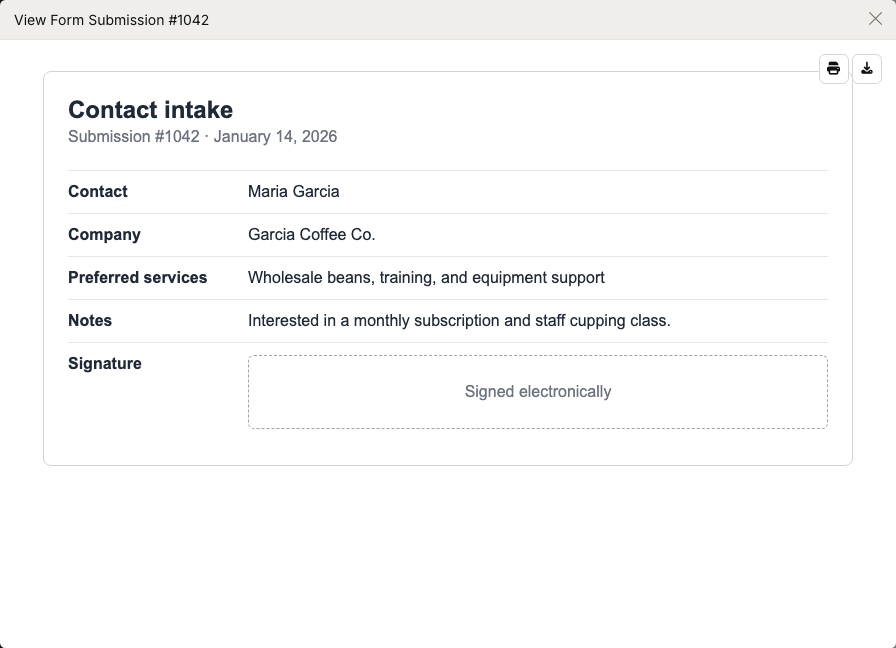
WebWorkstationMobileOpen a submission to print the rendered form or download a PDF copy.
Permission required
You need ZynoForms access to open and export submissions.
Print a submission
- Open ZynoForms.
- Select a submission.
- In View Form Submission, select the print icon.
- Use your browser or device print dialog.
Download a PDF
- Open ZynoForms.
- Select a submission.
- In View Form Submission, select the download icon.
- Wait for the PDF to render.
The downloaded file is named with the submission number, such as submission-123.pdf.
HTML preview
The submission preview is rendered as an HTML view inside ZynoSuite. This is the same preview used before printing or generating a PDF.
Common issues
| Problem | What To Check |
|---|---|
| Download takes time | PDF rendering may take a few moments for long forms. |
| Print layout differs from screen | Check print settings, paper size, and browser scaling. |
| Buttons are missing | Confirm the submission finished loading. |