Appearance
Submissions & Tracking
WebWorkstationMobileThe ZynoForms workspace lists submitted forms as they arrive.
Permission required
You need ZynoForms access to view submissions.
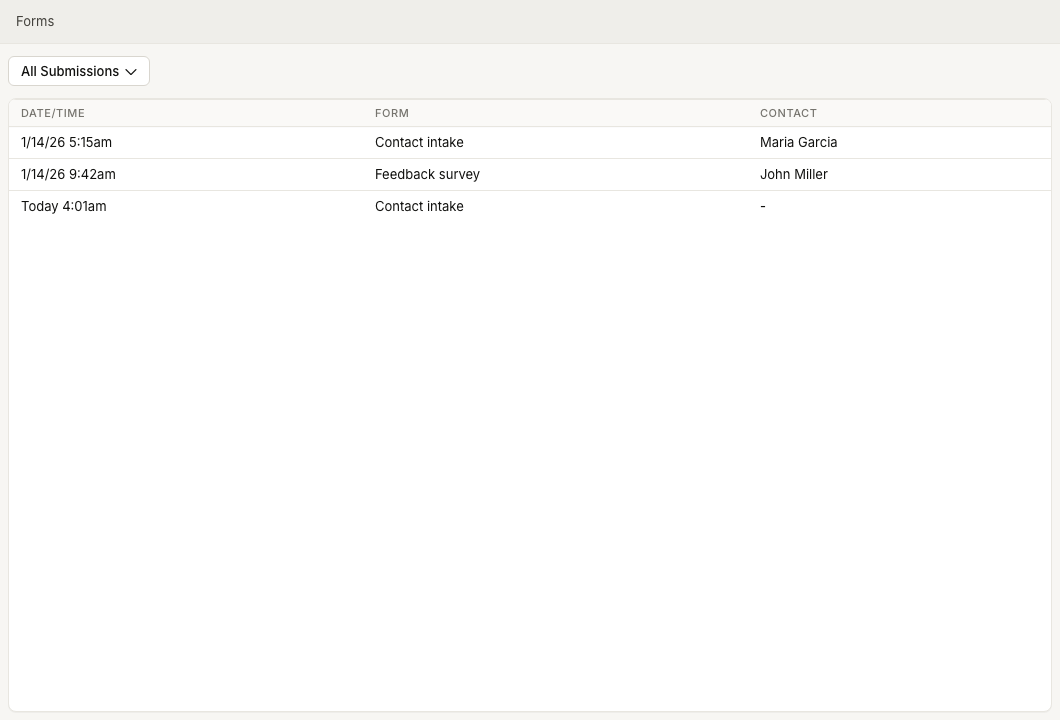
Review submissions
- Open ZynoForms.
- Review the table.
- Select a submission row to open it.
The table shows Date/Time, Form, and Contact. If a submission is linked to a contact record, the contact name appears in the Contact column.
The newest submissions load first. Scroll to the bottom to load more history.
Filter submissions
Select All Submissions to open filters. You can filter by:
- Form - one specific form or any form.
- On Date - one exact date.
- After Date and Before Date - a date range.
Use Clear to return to all submissions or Apply to use the selected filters.
Open a submission
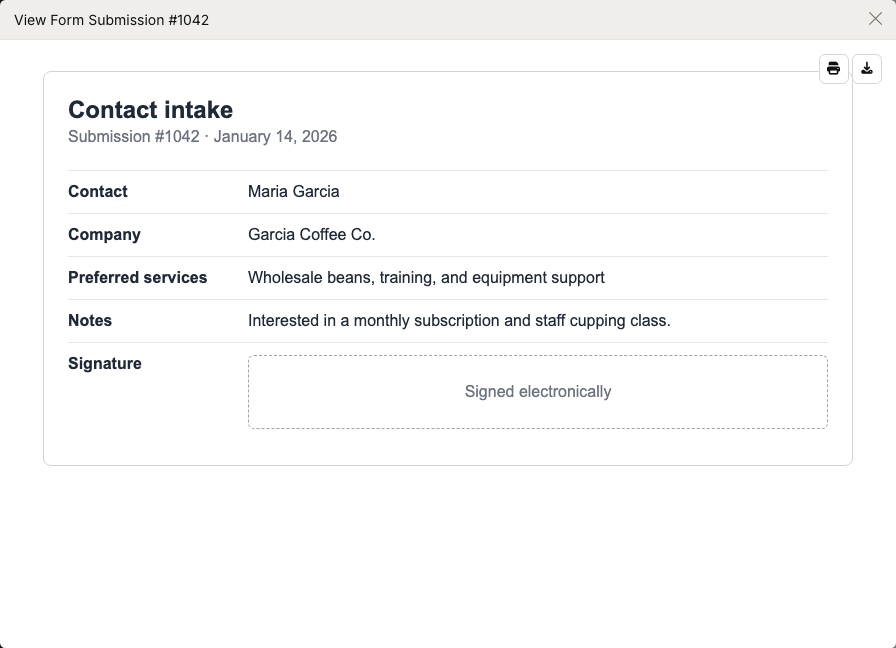
Selecting a row opens View Form Submission with the submission number. ZynoSuite renders the submission in a preview window.
From the preview, you can:
- Print the submission.
- Download the submission as a PDF.
New submissions
New submissions can appear in the list while the page is open. If the new submission matches your current filters, it is added to the top of the list.
Common issues
| Problem | What To Check |
|---|---|
| No submissions appear | Confirm submissions exist and clear filters. |
| A submission is missing | Check the selected form and date filters. |
| Contact shows a dash | The submission is not linked to a contact record. |
| More history is needed | Scroll to the bottom to load more submissions. |