Appearance
Barcode Scanning
WebWorkstationMobileScan a barcode to find an item in the list or fill a UPC field while editing.
Permission required
Viewing scan results requires ZynoInventory access. Saving a UPC requires inventory edit permission.
Scan in the ZynoInventory list
- Open ZynoInventory.
- Scan a barcode.
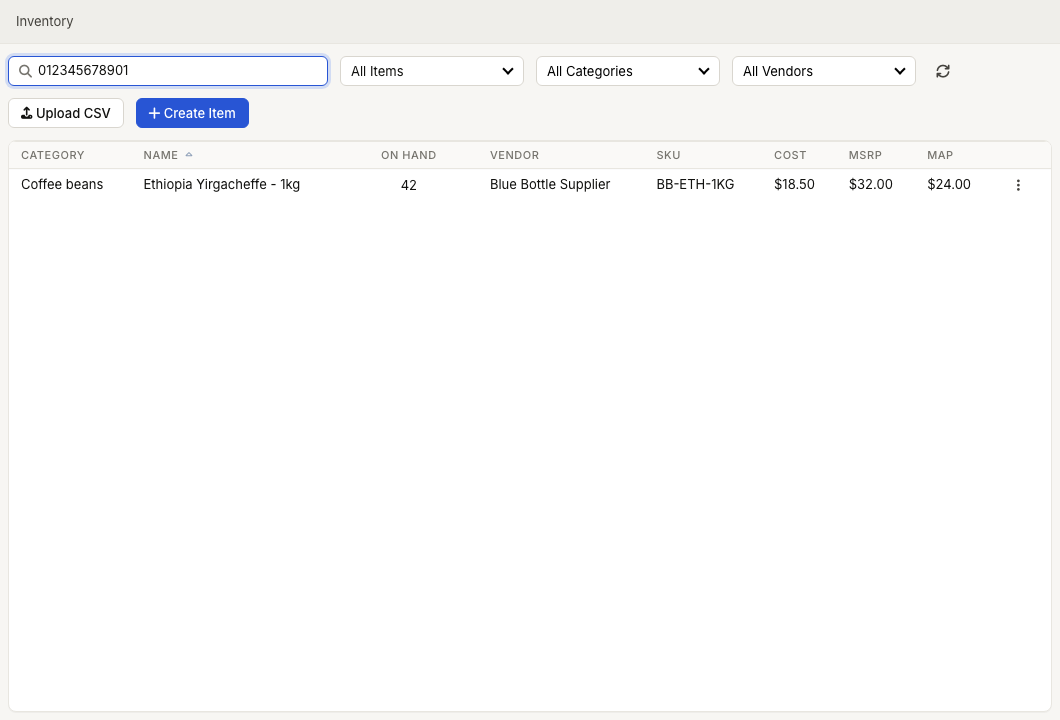
The scanned code is placed into the ZynoInventory search field. Matching items are shown if the UPC, SKU, or item details match the scanned value.
Scan in the item editor
- Open or create a standalone inventory item.
- Scan a barcode while the editor is open.
If the item is not linked to a ZynoSales product, the scanned code fills the UPC field.
Barcode values
The UPC field accepts a 12-digit UPC or 13-digit EAN. If your barcode is shorter or longer, review the item before saving.
Common issues
| Problem | What To Check |
|---|---|
| Scan does not find an item | Confirm the item has the scanned UPC or SKU saved. |
| Scan fills search instead of UPC | Open the item editor before scanning. |
| UPC cannot be saved | Check that the value is 12 or 13 digits. |
| Scanner enters extra characters | Configure the scanner to send only the barcode value and Enter if desired. |