Appearance
Stock Tracking
WebWorkstationMobileTrack stock as an exact quantity or as Good / Low / Out status, depending on how the item is set up.
Permission required
Inline quantity changes require inventory edit quantity permission. Changing an item's tracking type or Good/Low/Out status requires inventory edit permission.
Tracking types
| Type | Use It When |
|---|---|
| Exact | You count units and want numeric on-hand quantities. |
| Good/Low/Out | You only need a simple status for supplies or non-counted stock. |
Choose the tracking type when creating or editing an item.
Exact tracking
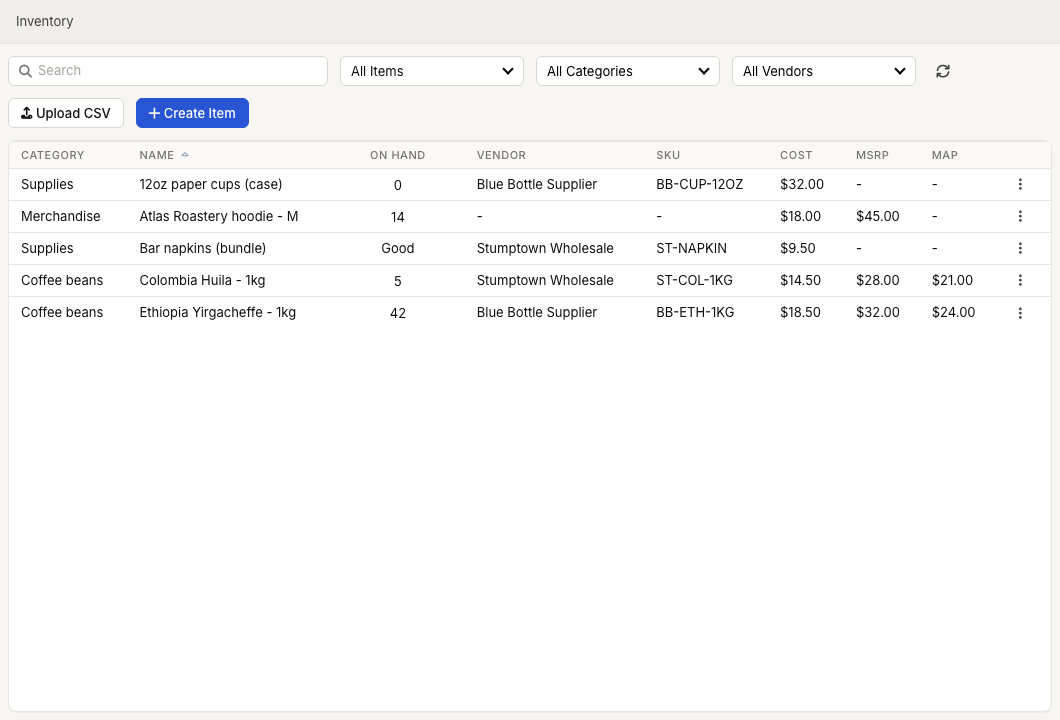
Exact items have an On Hand quantity. They can also have a Threshold. An exact item appears in Low when the on-hand quantity is at or below its threshold. If no threshold is set, a quantity of zero is treated as low and out.
Good/low/out tracking
Good/Low/Out items use a status instead of a numeric quantity. They appear in Low when the status is Low or Out, and they appear in Out when the status is Out.
Change a Good/Low/Out status by opening the item and updating On Hand in Edit Inventory Item.
Update quantity from the list
- Open ZynoInventory.
- Select the On Hand cell for an exact item.
- Enter a whole number.
- Press Enter.
The list updates the item and recalculates stock status. Press Escape or leave the cell to abandon the edit before it is submitted.
Common issues
| Problem | What To Check |
|---|---|
| The quantity field is disabled | Your account may not have inventory edit quantity permission, or the item is not using exact tracking. |
| A Good/Low/Out item has no numeric quantity | That tracking type intentionally uses status labels. |
| Low stock looks wrong | Review the item's threshold and tracking type. |