Appearance
Item Management
WebWorkstationMobileThe ZynoInventory list is the main workspace for finding and maintaining inventory records.
Permission required
You need ZynoInventory access to view the list. Editing requires inventory edit permission.
Browse the list
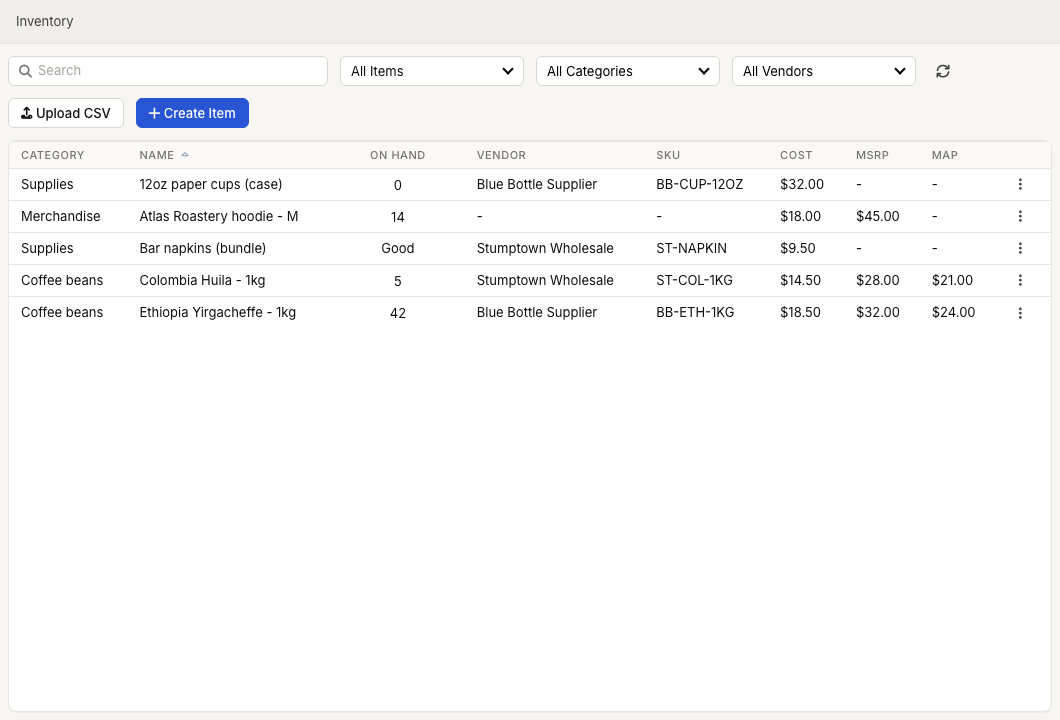
Open ZynoInventory. The table shows category, item name, on-hand status, vendor, SKU, cost, MSRP, and MAP. If a category or vendor filter is active, that column is hidden because the list is already scoped to that value.
Linked ZynoSales products show a link icon next to the item name.
Search and filter
Use the toolbar to narrow the list:
- Search finds item name, linked ZynoSales product name, vendor SKU, or UPC.
- All Items, Low, and Out filter by stock status.
- All Categories filters to one inventory category.
- All Vendors filters to one vendor.
- Refresh reloads the list.
Select a column heading to sort. Selecting the same heading again reverses the sort direction.
Open an item
Select an item row to edit it. If the item is linked to a ZynoSales product, ZynoSuite opens the linked product editor in its inventory view. If it is a standalone inventory item, ZynoSuite opens Edit Inventory Item.
Empty states
| Message | What It Means |
|---|---|
| No items | No inventory items have been created yet. Use Create Item or Upload CSV. |
| No matches | Search or filters did not match any items. |
| Load error | Refresh the page or try again later. |