Appearance
Editing Contacts
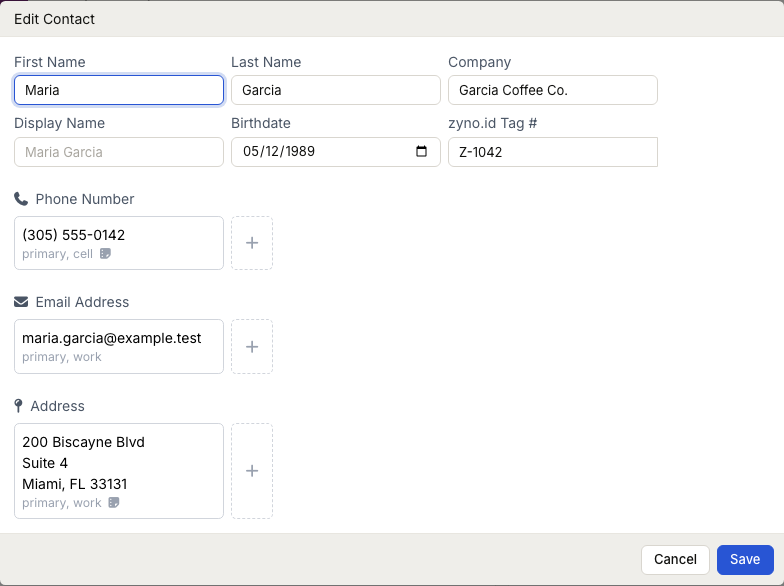
WebWorkstationMobileEdit a contact profile when names, phone numbers, emails, addresses, birthdates, company information, tags, contact types, alternate names, or marketing preference change.
Permission required
You need CRM edit access to change contact information.
Getting there
Open Customers & Contacts, select the contact, then open the editor from the contact name or the edit icon in Contact Info.
Open the contact editor
- Open Customers & Contacts.
- Select the contact.
- On the contact profile, select the contact name or the edit icon in Contact Info.
- Make your changes.
- Select Save.
Edit phones, emails, and addresses
Existing phone, email, and address cards open a small action menu. From that menu you can:
- Set the value as primary.
- Edit the value, type, custom type, or note.
- Delete the value from the contact.
Use the plus button in each section to add another phone number, email address, or address.
Edit alternate names, tags, types, and marketing
Use Alternate Names to keep another first and last name for the same contact, with an optional note. Alternate names are searchable and can help staff recognize a contact without replacing the primary name.
Use Tags to apply the named CRM labels that your administrator configures—these are not physical zyno.id Keytags that members scan for check-in. Use Contact Types to classify a contact with one or more available types. The Marketing control distinguishes Never asked, Opted in, and Opted out.
Select the action menu beside an alternate name to edit or remove it. Removing an alternate name does not remove the contact or change its primary name.
Edit the avatar
On larger screens, hover over the avatar and use the upload button to add or replace it. You can also open the avatar menu to replace or remove an existing avatar. On mobile, use the avatar button near the profile heading.
Name formatting
When you save, ZynoSuite normalizes name, display name, and company casing. Review unusual capitalization before saving if a contact uses a specific stylized name.
What editing does not do
Editing contact information does not change historical transactions, receipts, or form submissions. Those records retain their stored contact relationship.
Common issues
| Problem | What to check |
|---|---|
| Edit controls are missing | Confirm your role has ZynoCRM edit access |
| You cannot open the contact | Confirm the contact exists and your filters are not hiding it—see Searching |
| Tags or types are missing | Ask an administrator to configure tags and contact types |
| Avatar controls differ on mobile | Use the avatar button near the profile heading on small screens |