Appearance
Notes
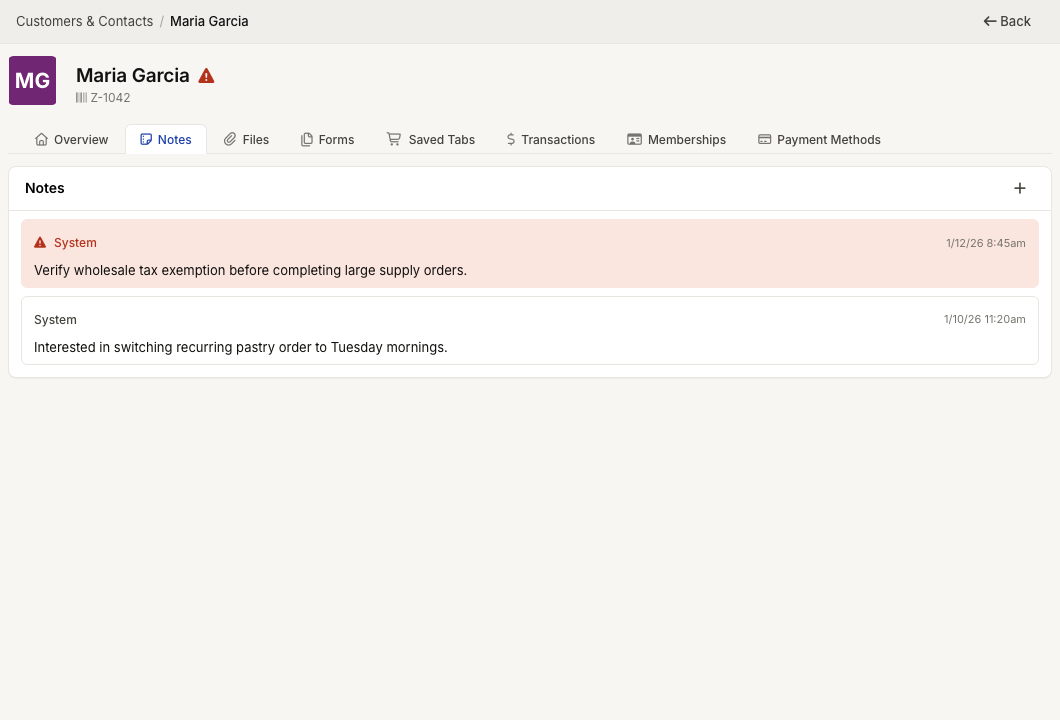
WebWorkstationMobileNotes let staff keep internal context on a contact profile. Use notes for follow-up reminders, preferences, service context, and alerts staff should see before helping the contact.
Permission required
Viewing, creating, and editing notes are separate CRM note permissions.
Add a note
- Open the contact profile.
- Open Notes or use the Notes card on Overview.
- Select the plus button.
- Enter the note.
- Optionally select Save note as alert.
- Select Save.
A note must contain text before it can be saved.
Alert notes
An alert note displays in red on the contact profile and can appear next to the customer name during checkout or other service workflows. Use alert notes for information staff should notice while helping that person.
Edit, delete, or view history
Use the note action menu to:
- Edit the note text or alert setting.
- Delete the note.
- View edit history when the note has been changed.
Edited notes show an edited - view history link. The history window shows the current version and earlier versions with timestamps.
Overview behavior
On the contact overview, alert notes float to the top. The overview card shows a limited number of notes, with a count when more notes exist.