Appearance
Files
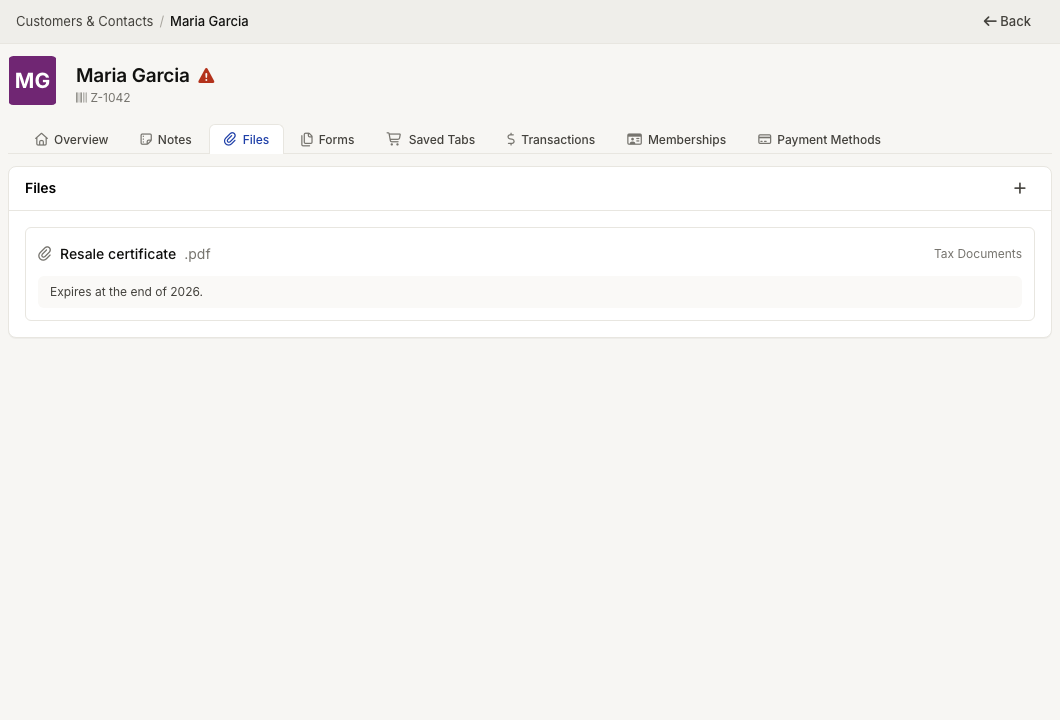
WebWorkstationMobileUse contact files for IDs, signed forms, receipts, contracts, reports, and other documents that belong with a contact record.
Permission required
Viewing, uploading, and editing files are separate CRM file permissions.
Upload files
- Open the contact profile.
- Open Files or use the Files card on Overview.
- Select the upload button.
- Choose one or more files.
- For each file, confirm the name, category, and optional comment.
- Select Upload.
File names are editable before upload. The extension is kept from the uploaded file.
Scan files from desktop
On ZynoWorkstation, users with file create access can select Scan files. ZynoSuite requests a scan from the workstation scanner, uploads the scan as a PDF, and lets you name, categorize, and comment on the file.
Manage existing files
On a file row, available actions can include:
- Download the file.
- Rename or edit the file category and comment.
- Delete the file.
The full Files tab sorts files by name. The overview card shows the newest files first.
File categories
Categories are managed by an administrator in Admin > ZynoCRM > File Categories. If the category you need is missing, ask an admin to add it.