Appearance
File Categories
WebWorkstationFile categories organize files attached to contact profiles. Staff choose these categories when uploading or editing CRM files.
Open this page from Admin > ZynoCRM > File Categories.
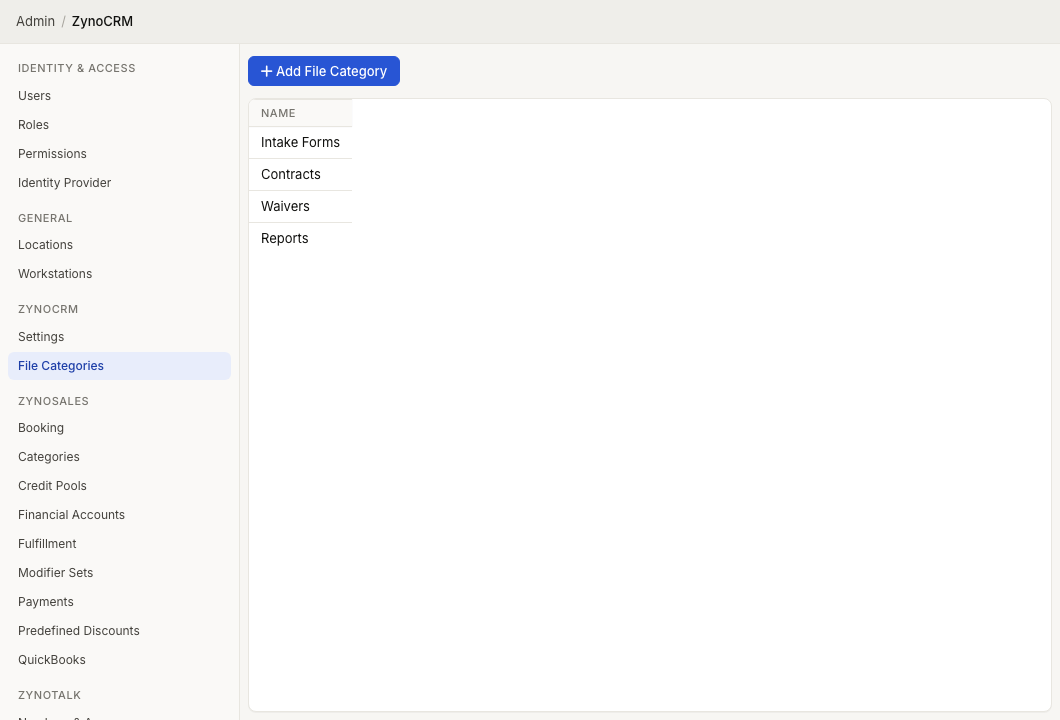
Category list
The File Categories page shows a table with a Name column. Select a row to edit that category.
If no categories have been configured, you see No file categories.
Add a file category
- Select Add File Category.
- Enter the Name.
- Select Create.
Use names staff will recognize, such as Contracts, IDs, Invoices, Reports, or Waivers.
Edit a file category
- Select the category row.
- Update the Name.
- Select Save.
Renaming a category updates the category label used for contact files.
Delete a file category
- Select the category row.
- Select the delete icon.
- Confirm deletion.
Before deleting, make sure staff no longer need that category for new uploads.