Appearance
Modifier Sets
WebWorkstationModifier Sets define reusable product choices such as sizes, toppings, add-ons, upgrades, and options. Shared modifier sets can be reused across products so staff see consistent choices in Salespoint.
Open this page from Admin > ZynoSales > Modifier Sets.
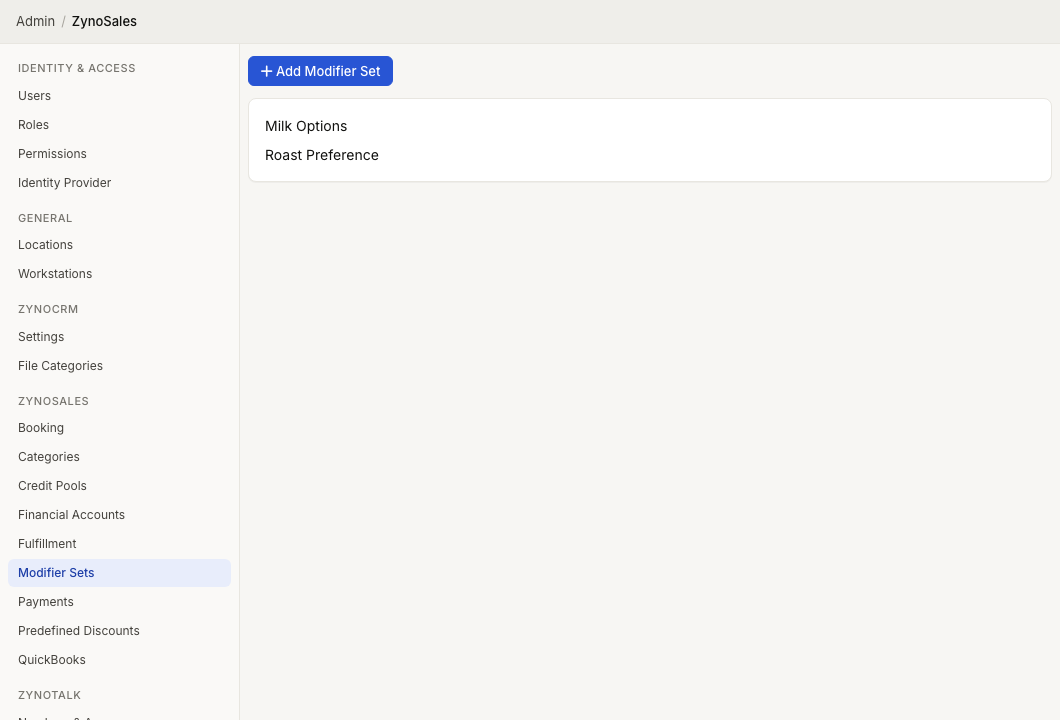
Shared modifier sets
The Modifier Sets page shows shared modifier sets only. Product-specific inline modifier sets are managed from the product configuration workflow.
Select a modifier set name to edit it. If no shared sets exist, the page says No shared modifier sets have been created.
Create a modifier set
- Select Add Modifier Set.
- In Create Shared Modifier Set, enter the Modifier Set Name.
- Add at least one Modifier Group.
- Add at least one modifier inside each group.
- Select Save.
Examples:
| Modifier Set | Groups |
|---|---|
| Burger Customizations | Size, Toppings, Sides |
| Coffee Options | Size, Milk, Syrups |
| Rental Add-ons | Protection Plan, Accessories |
Modifier groups
A modifier group is a section of choices inside the set. Each group has:
| Field | Meaning |
|---|---|
| Group name | The label staff see, such as Size or Toppings |
| Selection Mode | Whether staff choose one option or multiple options |
| Min Selections | Minimum number of choices required for multi-select groups |
| Max Selections | Maximum number of choices allowed for multi-select groups |
Use Single when staff should choose one option, such as one size. Use Multi when staff may choose several options, such as toppings.
Modifiers
Each modifier is one selectable choice inside a group.
| Field | Meaning |
|---|---|
| Product | Optional linked product for accounting and tax purposes |
| Name | Choice name shown to staff |
| Price | Price added by this choice |
| Default | Preselected choice or quantity |
| Free Qty | Included quantity before charging, for multi-select groups |
| Max | Maximum quantity of that modifier per item, for multi-select groups |
The Product selector can link a modifier to a standard non-booking product for accounting and tax purposes. When you select a product, ZynoSuite fills the modifier name and price from that product.
The editor requires at least one modifier group, and each group must contain at least one modifier before the set can be saved.
Sorting and removing choices
Drag groups or modifiers by their numbered handles to reorder them. Remove groups or modifiers only after confirming that products using the set should no longer offer those choices.
Deleting a shared modifier set affects all products that use it.