Appearance
Workstations
WorkstationWorkstations are registered ZynoWorkstation installations on Windows PCs. They are used for hardware-connected stations such as registers, front desks, shipping counters, and service desks.
Open this page from Admin > General > Workstations.
Workstation list
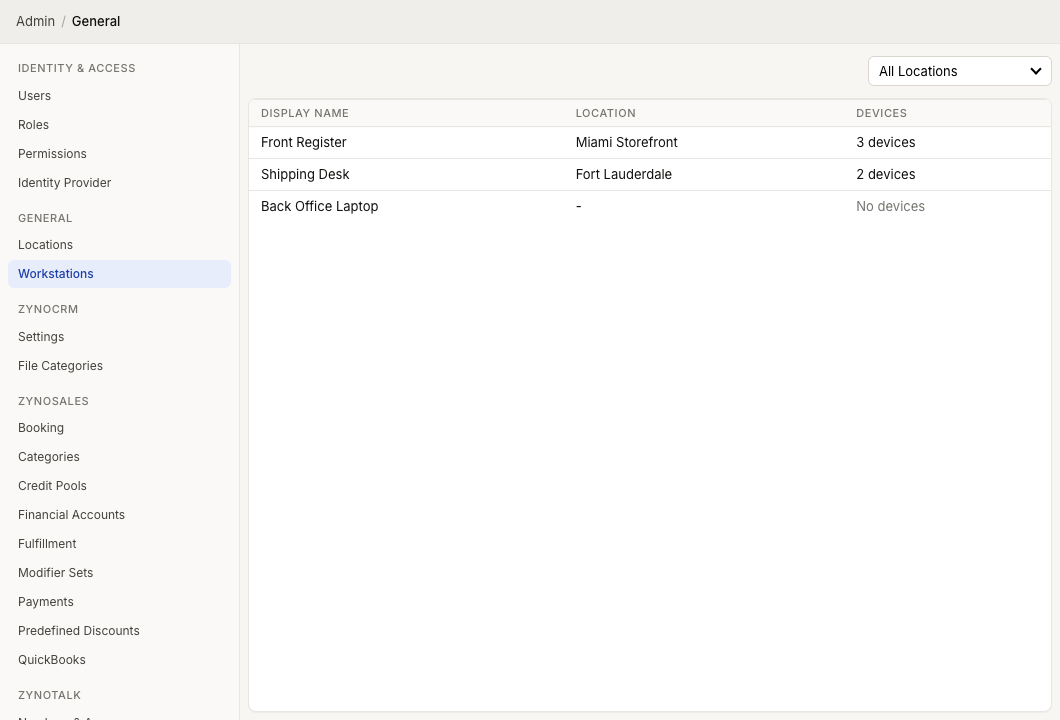
The Workstations page shows:
| Column | Meaning |
|---|---|
| Display Name | The friendly name for the Workstation installation |
| Location | The location assigned to that workstation |
| Devices | The number of detected hardware devices for that workstation |
Use the All Locations filter to view only workstations assigned to a specific location. The current workstation is highlighted in the table.
Edit a Workstation
- Open Admin > General > Workstations.
- Select a workstation row.
- Update the Display Name.
- Choose the workstation Location.
- Select the Idle Timeout for that workstation.
- Review device preferences and hardware.
- Select Save.
Use names that you can recognize, such as Front Register, Shipping Desk, or Back Office.
Idle timeout
The Idle Timeout setting controls how long a signed-in user can leave this workstation inactive before ZynoSuite returns it to sign-in. The editor provides common intervals from one minute through eight hours and preserves an existing custom interval when one is configured.
Choose a short interval for shared registers, front desks, or public-facing workstations. Choose an interval that matches your organization's security policy for a dedicated workstation. This setting applies to the workstation; it is separate from browser sign-in behavior and the browser's Keep me signed in option does not override it.
Device preferences
The preferences tab lets you choose which detected device should be used for common hardware roles:
| Preference | Use |
|---|---|
| Barcode Scanner | Default scanner for product or fulfillment scanning |
| Cash Drawer | Drawer opened by Salespoint cash workflows |
| Receipt Printer | Printer used for receipts |
| Label Printer | Printer used for labels |
| 8x11" Printer | Standard document printer |
Device options are based on detected hardware at the selected location. This allows a workstation to use its own devices or devices associated with another workstation at the same location when appropriate. If the workstation does not have a location selected, the preference lists will not show location devices.
Hardware
The hardware tab lists devices detected for the workstation. Device types can include printers, receipt printers, label printers, cash drawers, barcode scanners, and scanners.
If the page says No hardware detected on this workstation., check the physical connection, device power, desktop app status, and any required driver setup.
When to update a Workstation
Update workstation settings when:
- A Workstation installation operates in a new location.
- Staff need a clearer register or desk name.
- A printer, drawer, or scanner is replaced.
- More than one compatible hardware device is available and the default needs to change.
- The workstation needs a different inactivity sign-out interval.
Register and manage ZynoWorkstation installs, including idle timeout and hardware-related settings.