Appearance
QuickBooks Integration
WebWorkstationConnect QuickBooks Online so ZynoSales financial activity can be mapped to your accounting accounts. Open this page from Admin > ZynoSales > QuickBooks.
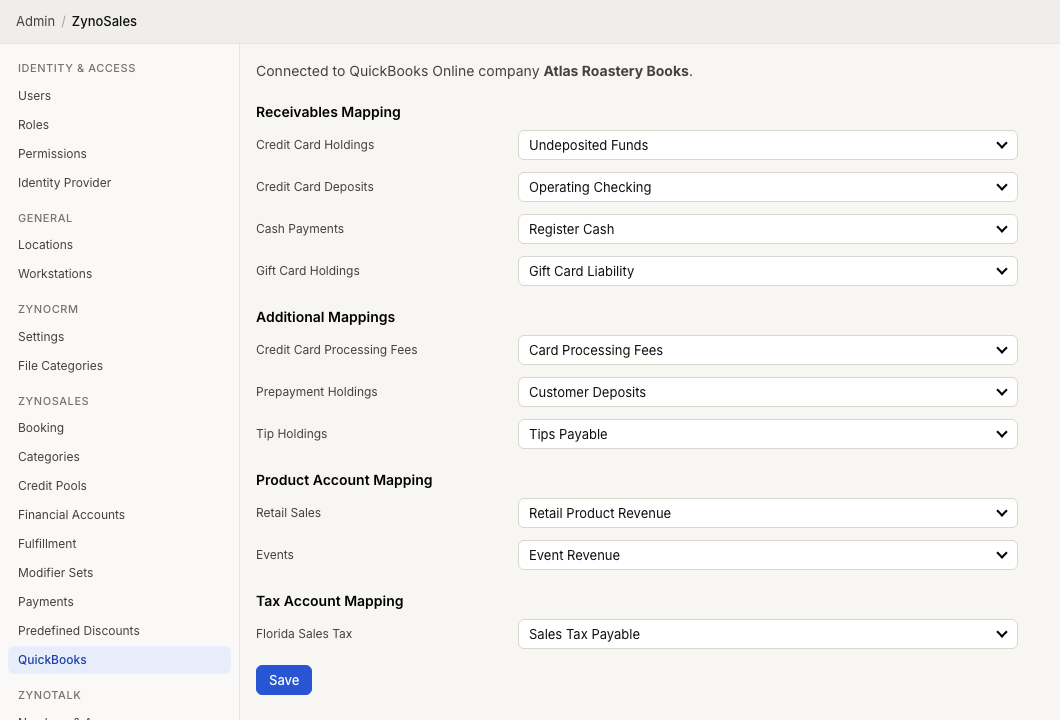
Connect QuickBooks
If QuickBooks is not connected, you see Connect to QuickBooks Online.
- Select Connect to QuickBooks Online.
- Complete the QuickBooks authorization flow.
- Return to ZynoSuite.
- Confirm the connected QuickBooks company name.
After connection, ZynoSuite loads QuickBooks accounts for mapping.
Receivables mapping
Map the accounts that hold or receive payment activity.
| Field | QuickBooks Account Type |
|---|---|
| Credit Card Holdings | Asset |
| Credit Card Deposits | Asset |
| Cash Payments | Asset |
| Gift Card Holdings | Liability |
Gift Card Holdings appears when gift card access is enabled.
Additional mappings
| Field | QuickBooks Account Type |
|---|---|
| Credit Card Processing Fees | Expense |
| Prepayment Holdings | Liability |
| Tip Holdings | Liability |
ZynoSuite requires Credit Card Holdings, Credit Card Deposits, and Credit Card Processing Fees before saving.
Product account mapping
Each ZynoSuite financial account can be mapped to a QuickBooks revenue account. Use this section to route product sales to the accounts your accounting team expects.
Configure ZynoSuite financial accounts under Financial Accounts.
Tax account mapping
If tax types are available, map each tax type to a QuickBooks liability account.
Save settings
After mapping accounts, select Save. ZynoSuite confirms when QuickBooks settings have been saved.
Good practices
- Review mappings with your accountant before saving.
- Keep ZynoSuite financial account names aligned with QuickBooks naming.
- Revisit mappings when adding new financial accounts or tax types.
- Review Daily Closeouts after setup so totals are easy to reconcile.