Appearance
Numbers & Access
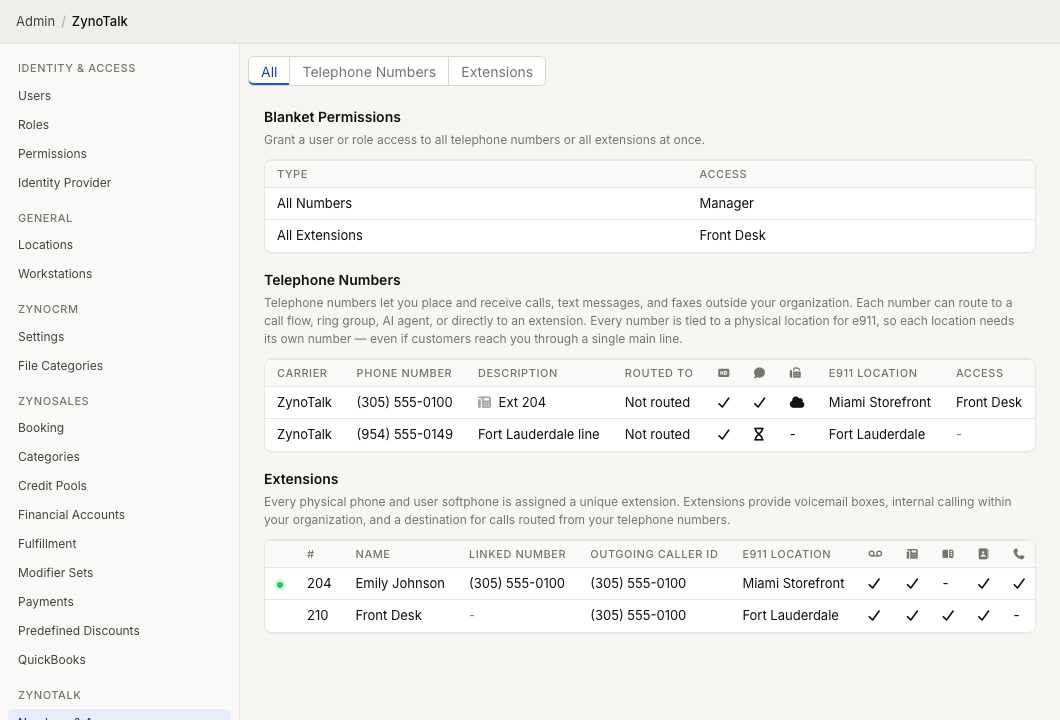
WebWorkstationUse Admin > ZynoTalk > Numbers & Access to manage the telephone numbers and extensions that users see in ZynoTalk.
Admin Access required
Only administrators with access to ZynoTalk administration can manage numbers, extensions, and ZynoTalk access.
Current ZynoTalk Platform
Advanced routing destinations such as Call Flows, Ring Groups, AI Agents, and Parking Lots appear only for organizations using the current ZynoTalk calling platform.
Page layout
The page has filters for All, Telephone Numbers, and Extensions.
It contains:
- Blanket Permissions for granting a user or role access to all numbers or all extensions.
- Telephone Numbers for external numbers used for calls, SMS, and fax.
- Extensions for internal calling, voicemail, desk phones, and softphone/mobile calling.
Manage a telephone number
- Open Admin > ZynoTalk > Numbers & Access.
- Select a telephone number.
- On Overview, edit the description, caller ID name, routing target, e911 location, or HD voice setting when available.
- On Access, grant users or roles the needed permissions.
- Save.
Telephone numbers can route to a call flow, ring group, AI agent, parking lot, extension, voicemail mailbox, or no destination.
Number access permissions
| Permission | Allows |
|---|---|
| Call History | View calls for the number. |
| Call Recordings | Open recordings for matching calls. |
| Texting | Use SMS conversations for the number. |
| View Fax | View received or historical faxes. |
| Send Fax | Send faxes from the number. |
Fax sending and receiving are separate permissions. A user may be allowed to view faxes without being allowed to send them.
Manage an extension
- Open Admin > ZynoTalk > Numbers & Access.
- Select an extension.
- On Overview, review or edit the primary user, name, display name, linked number, outbound caller ID, e911 location, BLF and directory options, and softphone setting when shown.
- On Access, grant users or roles access to extension features.
- If a voicemail tab is available, manage the voicemail greeting name and recorded greetings.
- Save.
The Manage Phone button opens the assigned phone endpoint when the extension has a physical phone.
Primary users and linked numbers
Assigning a Primary User to an extension automatically connects that user to extension-related features such as call history, voicemail, and notifications.
Linking a phone number to an extension can automatically grant SMS access for the primary user when messaging is enabled on that number. It can also make the number route directly to the extension when configured that way.
Extension access permissions
| Permission | Allows |
|---|---|
| Softphone | Use the extension for browser softphone calling when softphone is enabled. |
| Call History | View calls for the extension. |
| Call Recordings | Open recordings for matching calls. |
| Voicemail | View and manage voicemail for the extension. |
E911 location
Assign e911 locations carefully. A telephone number uses its selected physical location for emergency services. An extension can only place 911 calls when it has an emergency location through an assigned e911-enabled number or location.
Voicemail greetings
When voicemail is enabled and the voicemail tab is available, you can:
- Set a greeting name used in the system greeting.
- Add recorded greetings.
- Choose the active greeting.
- Rename, play, or delete greetings.
Common issues
| Problem | What To Check |
|---|---|
| A user cannot see a ZynoTalk tab | Verify their number or extension access includes that feature. |
| A number cannot be selected for SMS | Confirm messaging is enabled on the number. |
| A fax user can view but not send | Grant Send Fax in addition to View Fax. |
| An extension cannot make emergency calls | Assign a valid e911 location. |
| A user receives too many mobile calls | Review that user's Mobile Calls setting in Notification Preferences. |