Appearance
Booking Activities
WebWorkstationBooking Activities are the admin configuration behind ZynoSuite bookings. Each activity defines the service or experience being scheduled, how time slots are generated, which resources are used, and what contacts can do online.
Permission required
You must be an administrator.
Open this page from Admin > ZynoSales > Booking.
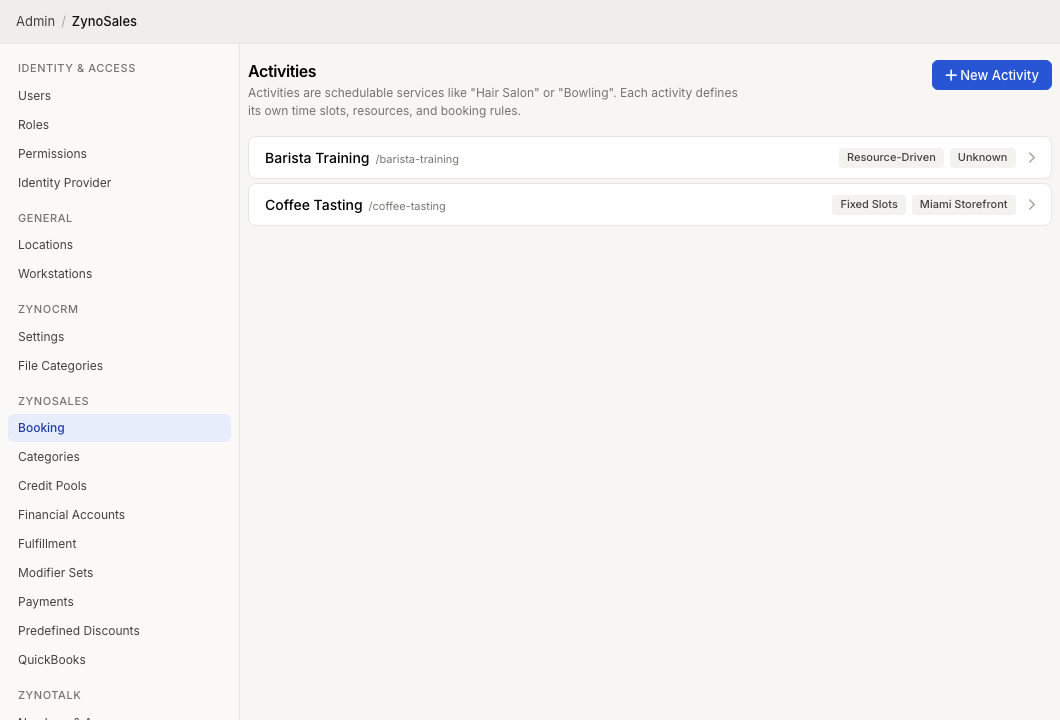
Activities list
The Booking page shows an Activities section. Activity cards include:
- Activity name.
- URL slug.
- Scheduling strategy.
- Location, or All Locations.
- Inactive status, when the activity is not accepting new bookings.
Select an activity card to edit it, or select New Activity to create one.
Create an activity
The New Activity wizard has four steps:
| Step | Configure |
|---|---|
| Identity | Name, slug, location, and basic details. |
| Scheduling | How time slots are generated and displayed. |
| Buffers & Timing | Setup or cleanup time and advance booking controls. |
| Policies | Contact self-service and cancellation rules. |
Select Create Activity when the setup is complete.
The slug is generated from the activity name, but it can be edited before saving. Use a short, readable slug because it can appear in online booking URLs.
Scheduling strategy
Each activity uses one scheduling strategy:
| Strategy | Use For |
|---|---|
| Fixed Slots | Classes, tours, events, or sessions where every booking uses the same duration. |
| Variable Duration | Activities where contacts choose from allowed durations, such as bowling or room rental. |
| Resource-Driven | Services where the booked product determines the duration, such as salon or spa services. |
For deeper setup guidance, see Setting Up Activities.
Activity detail tabs
After creating an activity, use the activity detail tabs to finish configuration:
| Tab | Purpose |
|---|---|
| General | Identity, scheduling, buffers, lead time, online self-service, and cancellation settings. |
| Schedules | Regular availability windows for the activity. |
| Slot Durations | Allowed durations for variable-duration activities. |
| Cancellation Rules | Custom cancellation policy rules when the activity uses custom policy handling. |
| Resources | Staff, rooms, lanes, equipment, or other resources that provide capacity. |
| Blocked Times | One-off closures or exceptions to regular availability. |
ZynoSuite shows a sticky unsaved-changes bar with Discard and Save Changes when edits need to be saved.
How activities connect to products
Activities define availability and rules. Bookable sales products determine what contacts can buy.
Use product booking settings to connect a product to an activity, set product duration when needed, and control pricing behavior. See Bookable Products.
Activation
Inactive activities do not appear in availability searches and cannot accept new bookings. Existing bookings are preserved.
Use inactive status while building a new activity or when a seasonal activity should temporarily stop accepting bookings.