Appearance
Discounts & Promo Codes
WebWorkstationThis page manages reusable discounts for Salespoint and promo codes for ecommerce. A single definition can set the discount value, where it applies, eligible products, redemption limits, and dates.
Open this page from Admin > ZynoSales > Discounts & Promo Codes.
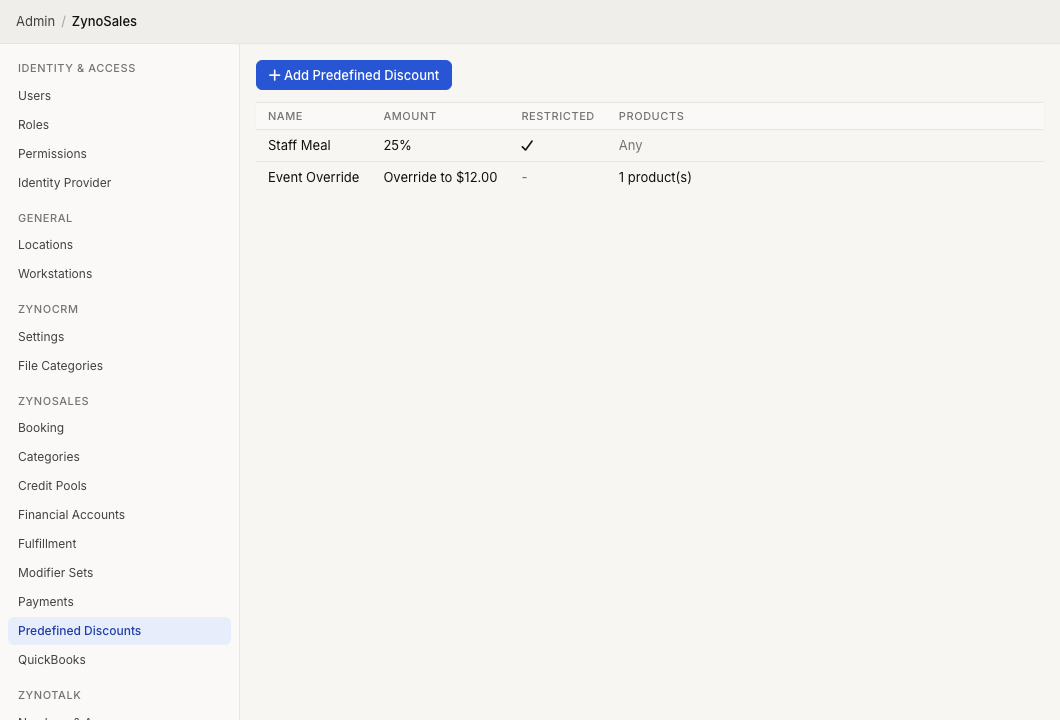
Create a discount or promo code
Create a new entry, then configure the fields that apply to its purpose.
Basics
- Name identifies the discount to staff.
- Choose the discount type: a flat amount, percentage, price override, or a Salespoint custom amount.
- Mark the discount Restricted when only staff with the broader predefined-discount permission may apply it.
- Turn on Ecommerce to create a promo code. Enter the code exactly as customers should use it; the code is stored and used in uppercase.
Where it applies
- Item applies to eligible sale items.
- Tab applies to the sale tab.
- Shipping applies to shipping.
Set product eligibility when the discount applies only to selected products, categories, or tags. Use requirements to require selected products, categories, or tags and, when needed, a minimum quantity before the discount can apply.
Limits and dates
For an item-scoped discount, set a per-item quantity limit or allow it to repeat. Set a start date, expiration date, maximum total uses, or one use per customer when the promotion needs controls. The one-per-customer option requires the sale to have an associated CRM contact.
Use in Salespoint and ecommerce
You can select a predefined discount in Salespoint. Restricted entries remain unavailable to users whose discount permission does not allow restricted predefined discounts.
An ecommerce entry uses its promo code in the ecommerce flow. Keep the code limited to the products, dates, and number of uses that match the campaign.
Discount types
| Type | Effect |
|---|---|
| Custom amount | Lets authorized Salespoint staff enter the amount when they apply it |
| Percentage | Discounts by a percentage, such as 10% |
| Flat Amount | Discounts by a fixed dollar amount |
| Price Override | Changes the item price to the entered amount |
The available choices depend on the discount scope and whether the entry is used in ecommerce.
Restricted discounts
Select Restricted when only users with stronger discount permission should be able to use the discount.
Users whose ZynoSales discount permission is set to Unrestricted Pre-defined Discounts Only cannot use restricted discounts. Users with All Pre-defined Discounts or Pre-defined & Custom Discounts can use them.
Restricted discounts are useful for manager approvals, high-value discounts, comps, or discounts that should not be available to all sales staff.
Edit, retire, and review
Select an entry to change its configuration. A discount that has been used keeps its historical meaning, so some scope and value settings are locked after use. Create a new discount when you need a materially different promotion, then retire the old one from active use.
Use deletion only for entries that should no longer be available. Review its past usage first, since existing sales retain the discount that was applied.