Appearance
Fulfillment Settings
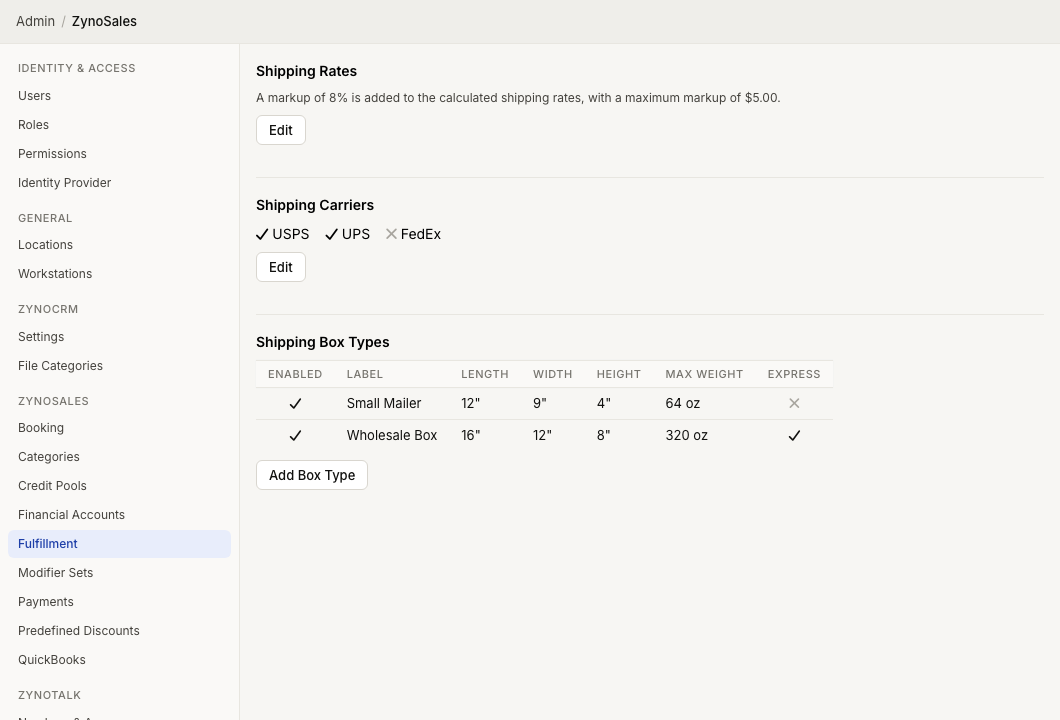
WebWorkstationFulfillment Settings control how ZynoSuite calculates shipping, which carriers can be used, and which package types are available when orders are packed.
Permission required
You must be an administrator with fulfillment edit access.
Open this page from Admin > ZynoSales > Fulfillment.
Shipping rates
The Shipping Rates section controls whether calculated carrier rates are passed through as-is or marked up before they are shown to the customer.
Select Edit to choose one of these options:
| Option | Behavior |
|---|---|
| Do not mark up calculated shipping rates | The calculated rate is passed through without markup. |
| Mark rates up by a fixed dollar amount | Adds the same dollar amount to each calculated rate. |
| Mark rates up by a percentage | Adds a percentage markup to each calculated rate. |
For percentage markup, choose Do not cap the markup or Cap the markup at and enter a dollar cap. Use a cap when you want percentage markup for small shipments but do not want large shipments to receive an excessive surcharge.
Shipping carriers
The Shipping Carriers section controls which carriers are available for calculated rates and label purchase.
Select Edit, enable the carriers you want to use, then save.
Supported carrier labels include:
- USPS
- UPS
- FedEx
Disabling a carrier removes it from new rate calculations. Existing orders and historical transactions keep their recorded shipment data.
Shipping box types
The Shipping Box Types section defines the packages ZynoSuite can use when it calculates how to pack fulfillment orders.
The table shows:
| Column | Meaning |
|---|---|
| Enabled | Whether the box type can be used for new packing calculations. |
| Label | Staff-facing name for the box type. |
| Length / Width / Height | Box dimensions in inches. |
| Max Weight | Maximum package weight in ounces. |
| Express | Whether the box type is limited to express shipments. |
Add or edit a box type
- Select Add Box Type or choose an existing box type.
- Choose a predefined Type or select Custom box.
- Enter a Label if the default type name is not specific enough.
- Enter length, width, height, and maximum weight.
- Choose whether the box is Express Only.
- Confirm Enabled when the box should be used for new fulfillment orders.
- Save.
When you select a predefined box type, ZynoSuite fills the label, dimensions, max weight, and express-only setting. Those fields are locked for the predefined type; use Custom box when you need your own dimensions.
Disable a box type when it should no longer be considered for packing new fulfillment orders. Delete only when the box type should be removed from configuration.
How settings affect checkout
Fulfillment settings are used when staff add shipping information to a Salespoint cart:
- Enabled carriers determine the available rate options.
- Enabled box types determine how products are packed.
- Rate markup changes the shipping price shown to the customer.
- Product fulfillment settings provide item weight, dimensions, and international shipping details.
Common issues
| Problem | What To Check |
|---|---|
| No rates are available | Confirm at least one carrier and usable box type are enabled. |
| A product cannot be shipped | Review the product's Fulfillment tab for weight and dimensions. |
| Shipping price is higher than carrier rate | Review fixed or percentage markup settings. |
| Box type is not being used | Confirm it is enabled, large enough, and under the max weight. |
| International shipment is missing details | Review the product's international fulfillment fields. |