Appearance
Fulfillment
WebWorkstationMobileShip or prepare pickup orders from one list—destination, packages, carrier, status, labels, and packing tools.
Permission required
You need ZynoSales fulfillment view access to open Fulfillment. Editing shipping details, labels, batches, and pickup scanning requires fulfillment edit access.
Before you begin
Fulfillment depends on product and admin setup:
- Physical products need fulfillment details such as weight and dimensions. See E-Commerce Products and Product Inventory Tracking for related product setup.
- Admins must configure carriers, box types, and rate markup in Fulfillment Settings.
- Sales transactions that need shipping must have shipping information saved from the Salespoint cart before payment is completed.
Open fulfillment
Open ZynoSales > Fulfillment.
The page uses the transaction list in fulfillment mode. If your role also has transaction access, you may see a switcher between transactions and fulfillment views.
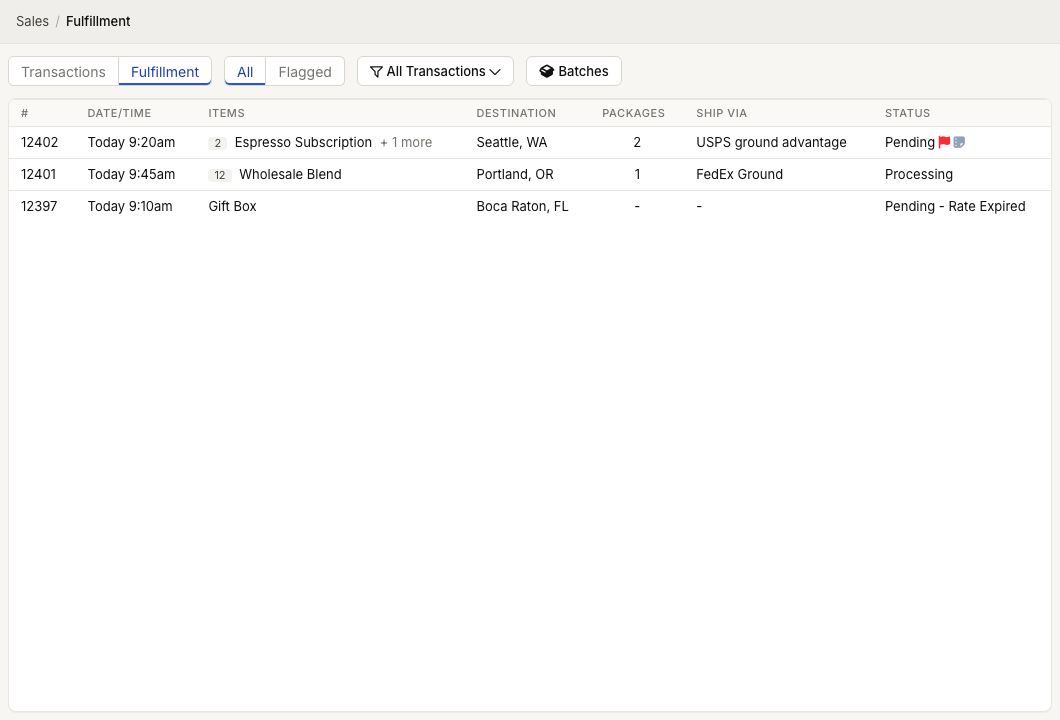
Fulfillment list
The fulfillment list shows:
| Column | Meaning |
|---|---|
| # | Sale number |
| Date/Time | When the transaction was created |
| Items | First item and a count of additional items |
| Destination | Recipient city, state or province, and country when outside the US |
| Packages | Number of shipment packages on the order |
| Ship Via | Selected carrier and service |
| Status | Current fulfillment status, plus flag and note indicators |
Use the all / flagged switcher to focus on orders that need review. Use filters to narrow the list by sale number, date, product, fulfillment status, or batch assignment.
Add shipping information during checkout
In Salespoint, open the cart menu and choose Add Shipping Info or Edit Shipping Info.
The shipping modal shows:
- Packages generated from the shippable products in the cart.
- Existing customer addresses and phone numbers when a customer record is attached.
- Recipient name, street address, city, state or province, postal code, country, and carrier contact number.
- Verify Address and Calculate Rates actions.
- Rate choices by carrier, service, delivery estimate, and price.
- A shipping price field, which defaults to the selected rate.
If the cart contents or address change after rates are calculated, recalculate rates before completing payment.
Review an order
Select a fulfillment row to open the transaction detail. Orders that have fulfillment information include a sale / fulfillment switcher.
The fulfillment detail shows:
- Fulfillment notes, when present.
- Customer link, when the sale is attached to a customer record.
- Ship-to recipient and contact details.
- Fulfillment status and selected carrier service.
- Package type, dimensions, weight, and package contents.
- Label status and action for each package.
- Open Packing Slip for a PDF packing slip.
Order actions
From the transaction detail actions menu, staff with fulfillment edit access can:
- Flag order or Unflag order.
- Edit fulfillment notes and mark the order for review.
- Edit shipping details while the order is still pending.
- Purchase or open labels from each package's label status.
- Open tracking once shipment tracking is available.
Statuses
Fulfillment statuses can include:
| Status | Meaning |
|---|---|
| Pending | Shipping information and rates exist, but labels have not been purchased. |
| Pending - Rate Expired | Rates need to be refreshed before label purchase. |
| Processing | At least one label has been purchased and the order is being prepared. |
| Shipped | The shipment has moved to the carrier. |
| Delivered | Carrier tracking reports delivery. |
| Exception | Carrier tracking reports a delivery exception. |
| Canceled | Fulfillment was canceled. |