Skip to content

Managing Bookings

WebWorkstationMobile

Once your activities, resources, and products are configured, staff can create bookings from Salespoint, review them in Calendar or List, confirm pending bookings, cancel eligible open bookings, and open editable bookings back in Salespoint.

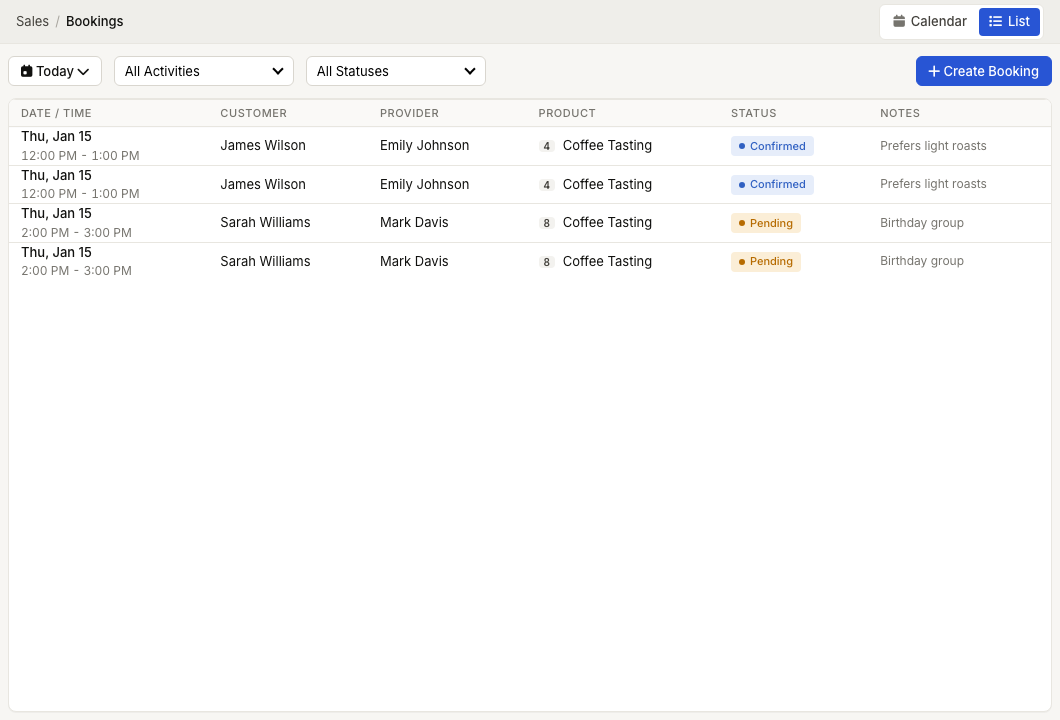
ZynoSales Bookings list showing booking statuses, customers, activity, dates, and totals
The List view is the operational review screen for confirming, opening, and managing bookings.

Creating a Booking

Bookings can be created by staff in a sales tab, online by the customer when online booking is enabled, or from an available time on the booking calendar. Regardless of how a booking is created, the system performs availability checks and resource assignment.

From a Sales Tab

Add a bookable product to a sales tab just like any other item. The system will prompt you to select a date and time slot. If the activity has variable durations, you will also choose the session length. Once a slot is selected, the booking is created and a resource is automatically assigned.

From the Calendar

Open the booking calendar, find an available slot, and choose the create-booking action. ZynoSuite opens Salespoint with the selected booking time. Add the bookable product, attach or create the customer, and save or complete the sale. See The Booking Calendar for details.

Online

If online booking is enabled (see Online Booking), customers can browse available slots and book through your website. Online bookings appear in the calendar and follow the same rules as staff-created bookings.

Walk-Ins

For customers who show up without a reservation, create a booking for the current or next available time slot. Walk-in bookings are tracked separately so you can distinguish them from advance reservations in your reports.

Booking Statuses

Every booking moves through a series of statuses that reflect where it is in its lifecycle:

Pending

The booking has been created but not yet confirmed. This is the initial state for online bookings that require review or payment. Staff can review pending bookings and either confirm or cancel them.

Confirmed

The booking is confirmed and the time slot is reserved. This is the standard state for most bookings after creation. The customer has a confirmed reservation and the assigned resources are blocked.

Checked In

The customer has arrived and been checked in. Checking in is optional — you can skip straight to marking a booking as in progress if you prefer. Check-in is useful when there is a gap between arrival and the start of the activity (for example, customers arrive 15 minutes early to sign waivers and get fitted).

In Progress

The activity is currently underway. For a haircut, this means the stylist is working. For a flight session, the customer is in the tunnel. This status is useful for dashboard displays and real-time tracking.

Completed

The booking is finished. This is the final successful state. Completed bookings remain on the calendar for the day and appear in your reports.

Cancelled

The booking has been cancelled. Depending on the cancellation policy, a full or partial refund may be issued. See Cancellation Policies for details on how refunds are calculated.

No-Show

The customer did not arrive for their booking. Marking a booking as a no-show is separate from cancellation — no-show bookings may have different refund rules and are tracked separately in reports.

Review And Confirm A Booking

  1. Open ZynoSales > Bookings.
  2. Select Calendar or List.
  3. Select a booking row or calendar entry.
  4. Review the sale preview.
  5. If the booking is pending and your role can edit it, select Confirm.

The preview can also show Open in Salespoint for editable open tabs. Use that when you need to change products, customer assignment, payment, notes, or other sale details.

Cancel A Booking

Open the booking preview and select Cancel Booking when that action is available. ZynoSuite asks for confirmation before cancelling the booking and deleting the open tab.

Cancellation actions are only available when your role can edit the booking and the related sale is still open. Completed sales are handled through transaction/refund workflows.

Open A Booking In Salespoint

Editable bookings can be opened from the preview or by using Open in Salespoint from the calendar context menu. Non-editable bookings open read-only.

Use Salespoint when you need to:

  • Change the customer.
  • Adjust items, quantities, discounts, or payments.
  • Send a booking confirmation.
  • Save or complete the related sale.

Rescheduling

In supported calendar views, users with booking edit access can drag an editable booking to a new time or resize bookings that allow custom time. ZynoSuite asks you to confirm the move or resize before applying it.

You can also open the booking in Salespoint and adjust the scheduled item there when that workflow is available.

Browse And Filter Bookings

Select List in ZynoSales > Bookings to review bookings in a table. The list shows Date / Time, Customer, Provider, Product, Status, and Notes.

You can filter by:

  • Date range.
  • All Activities or one activity.
  • All Locations or one location when multiple locations exist.
  • All Statuses or one status.
  • Resource, when an activity has multiple visible resources.

Use Create Booking from the List toolbar to start a new booking in Salespoint.

Statuses

The booking list can show Pending, Confirmed, Checked In, In Progress, Completed, Cancelled, and No Show statuses. The available actions depend on the booking status, sale status, and your role.

Still need help?

Can’t find what you’re looking for? Our support team is happy to help.