Appearance
Adding Items to Cart
WebWorkstationMobileAdd products to a sale from the Salespoint item browser. Products can be standard items, variable-price items, gift cards, memberships, packages, bookable services, or items with modifiers.
Permission required
You need ZynoSales access and Salespoint access.
Add from the item browser
- Open ZynoSales > Salespoint.
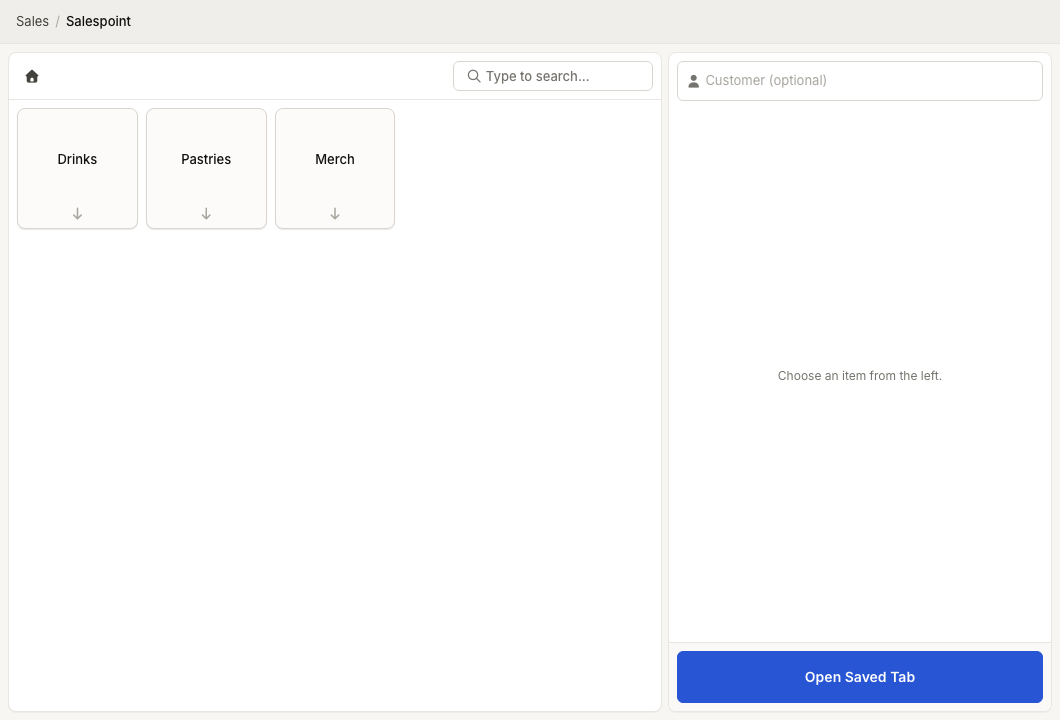
- Use the category tiles to browse the item browser.
- Select a product tile.
- If a detail prompt opens, enter the required details and select Add to Sale.
- Confirm the item appears in the cart.
Use the home icon above the item browser to return to the top level. Category buttons show your current path.
Search for a product
- Select Type to search... in the item browser.
- In Search for a product..., type part of the product name.
- Select the matching product from the results.
On desktop browsers and Workstation, typing a letter while Salespoint is active can also open product search when no modal is open.
Scan a barcode
Barcode scanning depends on your platform:
| Platform | How It Works |
|---|---|
| Workstation | Use a connected barcode reader. |
| Web | Use a keyboard-style barcode scanner if your browser/device supports it. |
| Suite Mobile | Use the barcode scan button to open the camera scanner. |
When a UPC matches a configured product, Salespoint adds the product to the cart. The mobile camera scanner also shows Added: [product name]. If the UPC is not recognized, Salespoint shows UPC not recognized.
Products that need details
Some products open a Details for... modal before they can be added.
| Product Type | Details You May Need |
|---|---|
| Variable price | Enter the sale price. |
| Gift card | Enter or scan a gift card number, generate a new number, and choose delivery details. |
| Bookable product | Select date, time, resource/provider, or booking details. |
| Product with modifiers | Select modifier options. |
| Any product | Add notes if needed. |
Select Add to Sale after the details are complete.
Change an item after adding it
- Select the item in the cart.
- Choose an available action:
- Increase or decrease quantity.
- Select Modify to change details.
- Select Discount or Remove Discount.
- Select Remove.
- Select Set Customer or Change Customer when the item supports an item-level customer assignment.
Booking items
If you start from the booking calendar, Salespoint may show a banner beginning Currently booking with the selected time or resource. Choose a bookable product to create the booking item for that selection.
Use the X on the banner to clear the booking selection before adding a product.
Common issues
| Problem | What To Check |
|---|---|
| A product does not appear | Confirm it is active and included in the Salespoint layout/category. If your Salespoint is booking-focused, confirm the product is bookable. |
| A barcode is not recognized | Confirm the product UPC is configured and matches the barcode being scanned. |
| A product opens a details modal | The product requires extra information before it can be added. |
| Payment is blocked after adding an item | Resolve item alerts or attach a required customer. |