Appearance
Modifiers
WebWorkstationMobileModifiers are product choices such as sizes, toppings, add-ons, upgrades, and options. Staff select modifiers when adding or modifying a product in Salespoint.
Permission required
You need ZynoSales product edit access to configure modifiers. Staff need Salespoint access to use them.
Modifier options
Standard products can use two kinds of modifiers:
| Kind | Use When |
|---|---|
| Shared Modifier Sets | The same choices should be reused across multiple products |
| Product-Specific Modifiers | The choices apply only to one product |
Shared modifier sets are managed under Admin > ZynoSales > Modifier Sets. Product-specific modifiers are managed on the product's Modifiers tab.
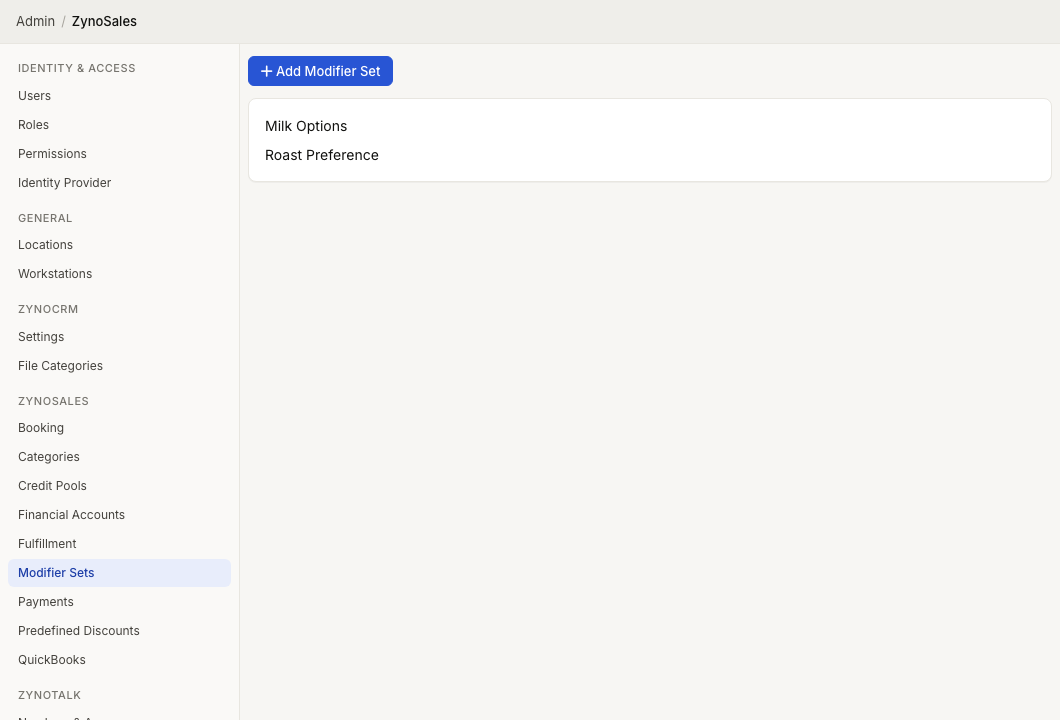
Add a shared modifier set to a product
- Open ZynoSales > Products.
- Select a standard product.
- Open the Modifiers tab.
- Use Add Modifier Set to select a shared set.
- Save the product.
The selected shared sets appear in the product's modifier list.
Add product-specific modifiers
- Open a standard product.
- Open the Modifiers tab.
- Select Add Modifier Group.
- Enter the Group Name.
- Choose Selection Mode.
- Add at least one modifier.
- Save the group, then save the product.
Each product-specific group must contain at least one modifier.
Selection modes
| Mode | Meaning |
|---|---|
| Single | Staff select one modifier from the group |
| Multi | Staff may select multiple modifiers from the group |
For multi-select groups, you can set Min Selections and Max Selections.
Modifier fields
| Field | Meaning |
|---|---|
| Product | Optional linked product for accounting and tax purposes |
| Name | Choice name shown to staff |
| Price | Additional amount for the choice |
| Default | Preselected choice or quantity |
| Free Qty | Included quantity before charging, for multi-select groups |
| Max | Maximum quantity allowed for that modifier |
When a modifier is linked to a product, ZynoSuite can fill the modifier name and price from that product.