Appearance
Viewing Transactions
WebWorkstationMobileUse Transactions to review completed sales, search past activity, send or print receipts, view payment details, reopen eligible sales, and start refunds or cancellations.
Permission required
You need ZynoSales transaction view permission. Editing, reopening, refunding, canceling, and fulfillment actions require additional ZynoSales permissions.
Open transactions
From the launcher or sidebar, open ZynoSales > Transactions.
The Transactions table shows recent sales. Select any row to open transaction detail.
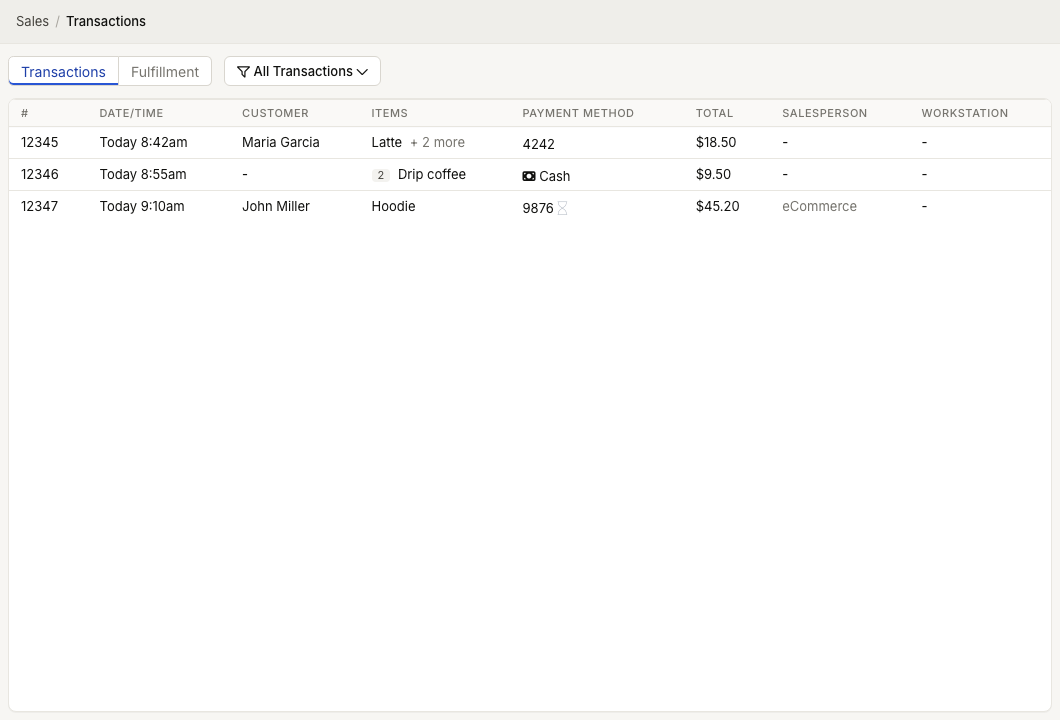
Table columns
The transaction list can show:
| Column | Meaning |
|---|---|
| # | Sale number. |
| Date/Time | When the transaction was created. |
| Customer | Attached customer, if any. |
| Items | First item plus a count of additional items. |
| Payment Method | Payments recorded on the sale. |
| Total | Transaction total. |
| Salesperson | User who created the transaction, or eCommerce for online sales. |
| Workstation | Workstation/install that created the transaction, if available. |
If you have fulfillment access, the page can also switch into a fulfillment view with destination, packages, ship-via, and status columns.
Filter transactions
Select the filter button to narrow the list. The filter label starts as All Transactions and changes as filters are applied.
Available filters include:
- Sale Number
- On Date
- After Date
- Before Date
- Salesperson
- Salespoint
- Customer
- Product
- Payment Method: Any, Card, or Cash
- Card Last 4
- Amount
- Fulfillment Status, when available
Use Apply to filter or Clear to reset the filter.
Open transaction detail
Select a transaction row to open Sale [number].
Transaction detail can show:
- Customer
- Date
- Salesperson
- Notes
- Items
- Totals
- Payments
- Fulfillment details, if the sale is a fulfillment order
If a customer is attached and you have Customers & Contacts access, select the customer name to open the customer record.
Transaction actions
Open the more-actions menu in transaction detail for available actions. Depending on platform, transaction type, and permissions, actions can include:
| Action | What it does |
|---|---|
| Print receipt | Sends the receipt to the configured Workstation receipt printer. |
| Send receipt | Sends the receipt by email or text message. |
| View receipt | Opens a receipt preview. |
| Re-open sale | Opens a closed sale back in Salespoint for eligible post-sale changes. |
| Refund sale or Cancel sale | Refunds or cancels the full sale when allowed. |
| Flag order or Unflag order | Marks fulfillment orders for attention. |
| Edit fulfillment notes | Updates internal fulfillment notes. |
| Edit shipping details | Updates shipping details while the order is still pending. |
Open tabs and reopened sales
If a transaction detail banner says the tab has been re-opened, select the banner to jump back to that sale in Salespoint.
Reopened sales are highlighted in the transaction list until they are closed again.
Common issues
| Problem | What To Check |
|---|---|
| You do not see Transactions | Confirm your role includes transaction view permission. |
| Filters show no results | Clear filters, then apply one filter at a time. |
| Refund/cancel actions are missing | Confirm the sale is closed, has refundable payment activity, and your role can edit transactions. |
| Print receipt is missing | Receipt printing is available from Workstation when a receipt printer is configured. |
| Fulfillment switch is missing | Your role may not include fulfillment access. |