Appearance
Using Salespoint
WebWorkstationMobileBuild a sale, attach a customer, take payment, send a receipt, or save a tab. Open ZynoSales > Salespoint from the launcher or sidebar.
Permission required
You need ZynoSales access and Salespoint access. Some organizations split this into Workstation-only Salespoint access and any-device Salespoint access.
If your role only allows booking work in Salespoint, the item browser may show only bookable products and the main cart button focuses on saving or closing the tab instead of taking payment.
Open Salespoint
From the launcher, open ZynoSales > Salespoint.
Salespoint has two main areas:
| Area | What it does |
|---|---|
| Item browser | Shows product categories, product tiles, search, and barcode scanning options. |
| Cart | Shows the current sale number, customer, line items, notes, totals, payment button, and more actions. |
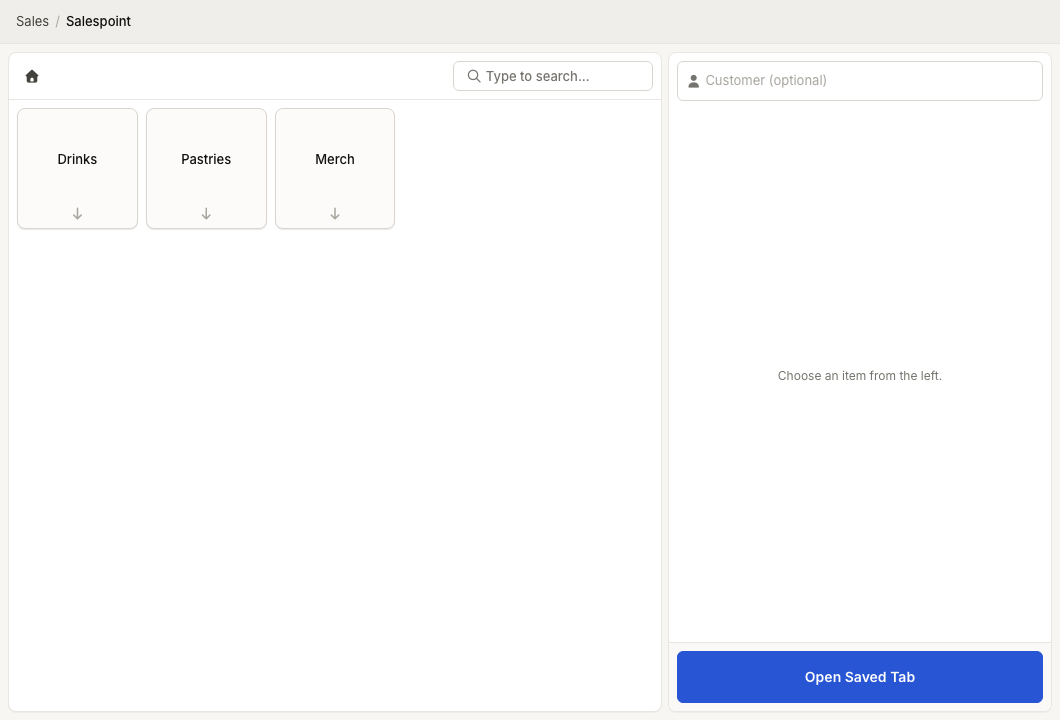
On smaller screens, the cart stays anchored below the item browser.
Start a sale
- Open ZynoSales > Salespoint.
- Choose a category or product from the item browser.
- Add products to the cart.
- Attach a customer if needed.
- Review quantities, discounts, notes, and totals.
- Select Pay when the sale is ready.
If the sale total is already paid or has a zero balance, the main button changes to Complete Sale.
Attach a customer
The customer field appears at the top of the cart.
- Select Customer (optional) or Customer.
- Search for the customer.
- Select the correct customer record.
The field says Customer when at least one item requires a customer, such as a membership-related item. After a customer is attached, customer-specific options such as saved cards, customer alerts, memberships, and transaction history can become available.
To remove the customer, select the X in the customer field.
Edit items
Select an item in the cart to open item actions. Depending on the item, you can:
- Increase or decrease quantity.
- Select Modify to edit details such as price, booking time, modifiers, gift card details, or notes.
- Select Discount or Remove Discount.
- Select Remove.
- Select Set Customer or Change Customer for item-level customer assignments when that action is available.
Some items cannot have their quantity changed, including gift cards, membership items, and items controlled by membership discounts or credit pools.
Pay or save
Use the main cart button:
| Button | Meaning |
|---|---|
| Pay | The sale has a remaining balance. Open the payment modal. |
| Complete Sale | The sale has no remaining balance. Close the sale. |
| Save Tab | Save an in-progress sale for later. |
| Close Tab | Close a saved or booking-focused tab. |
| Open Saved Tab | Open a previously saved tab when no sale is active. |
| View Payments | The sale has payments and is owed a refund. |
Use the cart actions menu for actions such as saving/deleting a tab, adding notes, discounting the whole sale, adding shipping information, viewing payments, and sending a booking confirmation. Select More... in that menu to open More Options, where Workstation cash tools can show Open Drawer, Begin Cash Session, or End Cash Session when available.
Common issues
| Problem | What To Check |
|---|---|
| You do not see Salespoint | Confirm your role includes ZynoSales and Salespoint access. |
| Pay is disabled | Resolve item alerts and attach required customers. |
| CC Terminal is missing | Use Workstation and confirm card terminals are configured. |
| CC Reader is missing | Use ZynoSuite Mobile and connect a mobile card reader. |
| Receipt printing is missing | Use Workstation with receipt printing enabled and configured. |
| Barcode scans do not add products | Confirm the product has a UPC and the scanner is sending the expected code. |