Appearance
Payment Methods
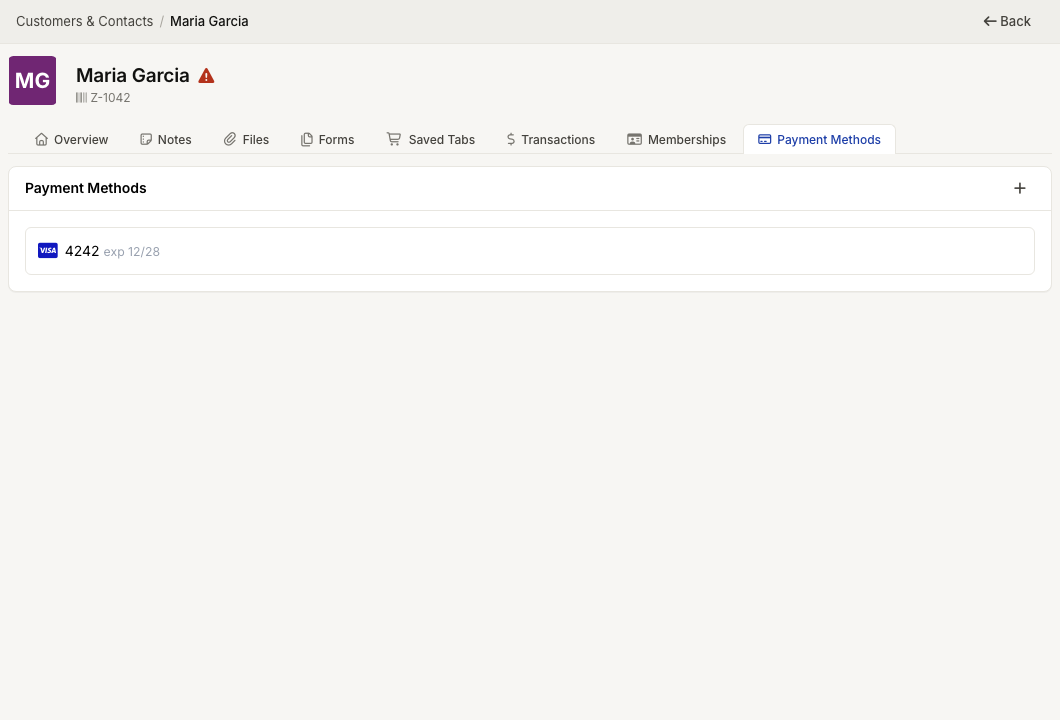
WebWorkstationCustomer payment methods are saved cards that can be used later for memberships, deposits, future tabs, or other card-on-file workflows.
Permission required
Viewing, adding, and deleting payment methods are separate CRM payment method permissions.
Before you begin
- Card payments must be configured with a Stripe account.
- Terminal entry requires a configured payment terminal.
- The contact must already exist in CRM.
Add a payment method
- Open the contact profile.
- Open Payment Methods.
- Select the plus button.
- Enter the card in the card field, or use Read card from terminal if terminals are available.
- Select Save.
The saved card appears with its brand, last four digits, and expiration date.
Use a terminal
If more than one terminal is available, choose the terminal from the menu. ZynoSuite prompts the terminal and saves the card after the setup succeeds.
Delete a payment method
Hover over the saved card and use the delete action. Deleting a saved card removes it from future use; it does not erase historical payments already made with that card.
Common issues
| Problem | What To Check |
|---|---|
| Add window closes with an error | Confirm the Stripe account is configured and active |
| Terminal button is missing | Confirm payment terminals are configured and available |
| Card is not available for a membership | Confirm the card is saved on the membership owner contact |