Appearance
Fax
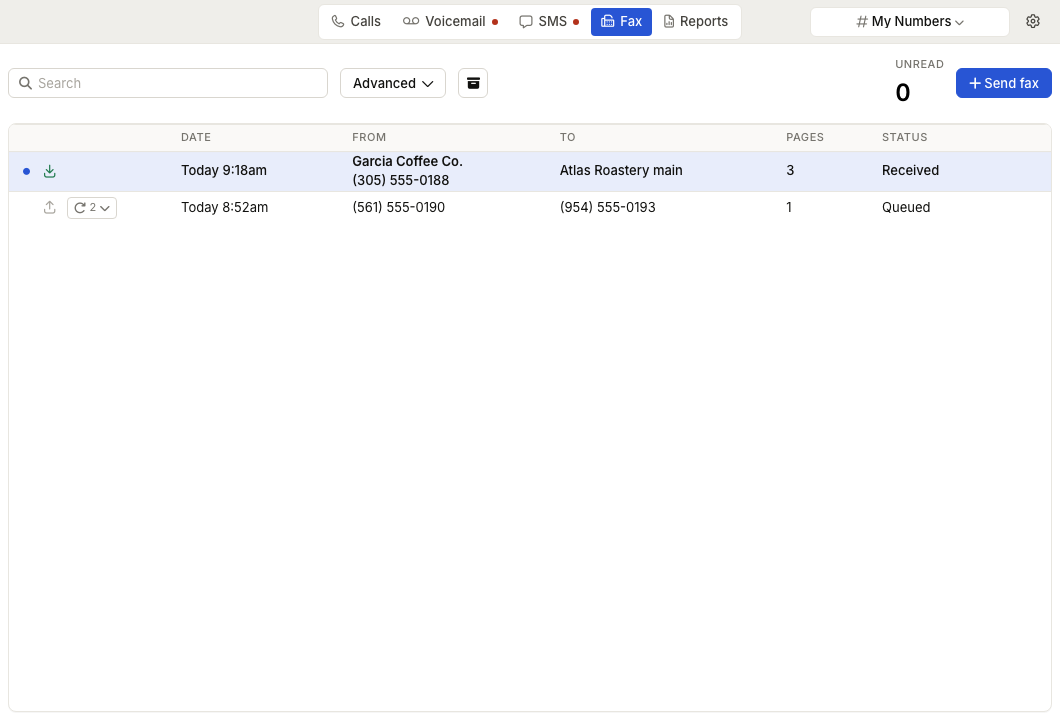
WebWorkstationThe Fax tab manages digital faxes for ZynoTalk numbers configured for internet fax.
Permission required
You need fax receive access to view faxes and fax send access to send new faxes from a number.
Review faxes
- Open ZynoTalk > Fax.
- Use the selector to choose the number scope.
- Search or use Advanced filters if needed.
- Open a fax to view the PDF.
The fax list shows direction, date, sender, recipient, page count, and status. Incoming unread faxes count toward the Unread total.
Send a fax
- Select Send fax.
- Choose Send from.
- Enter the destination fax number.
- Add one or more PDF files.
- Optionally enable Include cover sheet and fill in the cover fields.
- Select Preview to review the combined PDF if needed.
- Select Send.
Only PDF files can be attached. You can also drag PDF files onto the Fax page to start or add to a send fax draft.
Retry a failed fax
If the latest send attempt failed, the row can show a failed status and retry action. Select Retry to send the fax again.
Rows with multiple send attempts can be expanded to review previous attempts.
Archive and read state
- Mark incoming faxes read or unread from the row.
- Archive completed faxes to remove them from the active list.
- Use View archived to review or unarchive faxes.
- When a fax is open, use Archive or Unarchive, download the PDF, or close the viewer.
Common issues
| Problem | What To Check |
|---|---|
| Send fax is not visible | Confirm the selected scope includes a digital fax number where you have fax send access. |
| A file is rejected | Fax sending accepts PDF files only. |
| Preview is disabled | Add at least one PDF file. |
| No faxes appear | Clear search filters or switch between active and archived view. |