Appearance
Assigning Content
WebWorkstationAssigning content is how you decide what a screen shows day to day. You can set content directly on a screen, or let the screen inherit it from a group. For one‑off, right‑now content, use a live override instead.
Permission required
You need the Configure Displays permission. Showing a ZynoForm also requires access to ZynoForms. See Permissions & Troubleshooting.
Set a screen's default content
- Open the device from Devices and go to the Screens tab.
- Select the screen.
- Choose its default content and pick a content type — a single image or video, a playlist, a web page, a ZynoForm, and so on.
- Save.
The default is what the screen shows whenever no override or schedule applies.
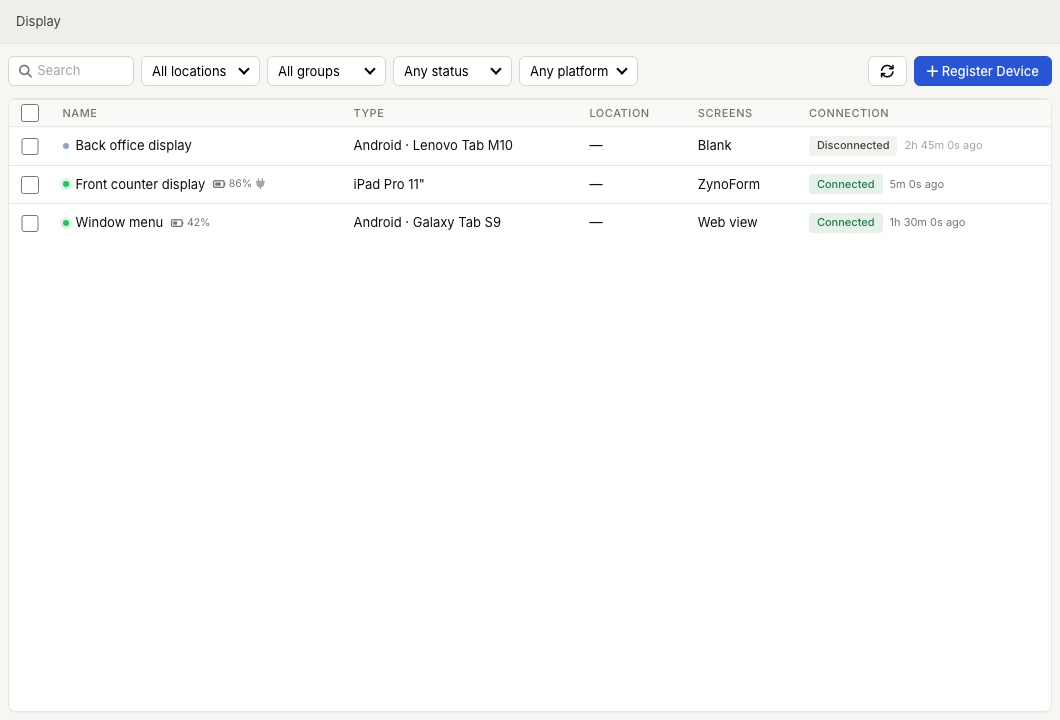
Inherit content from a group
Instead of setting content on each screen, add screens to a group and set the content once on the group. Every screen in the group shows the group's content — unless a screen has its own default, which takes priority. This is the easiest way to keep many screens in sync.
Which content wins
A screen can have several sources of content at once. ZynoDisplay picks one in this order — the first match wins:
- Live override — anything you've pushed right now.
- Schedule — the highest‑priority schedule rule matching the current day and time. A screen's own schedules beat its group's.
- Screen default — the content set on the screen.
- Group default — the group's content, if the screen is in one and has no default of its own.
- Blank — nothing matches, so the screen shows nothing.
See How ZynoDisplay Works for more on this model.
Clearing content
To stop a screen showing its default, set its content to Blank and save. The screen stays registered and online; it just shows nothing until you assign content again.
Common issues
| Problem | What To Check |
|---|---|
| A screen is blank unexpectedly | A schedule may set it blank for the current time, or no default is set. Check schedules and the screen default. |
| A screen ignores the group's content | The screen has its own default, which overrides the group. Clear the screen default to inherit again. |
| ZynoForm isn't offered | Confirm you have ZynoForms access and that the device supports forms. See Content Types. |
| New content hasn't appeared | The device must be connected to sync. See Status & Monitoring. |