Appearance
Media Library
WebWorkstationThe Media Library holds the images and videos you show on screens. Upload a file once and reuse it across any number of playlists, screens, and groups.
Permission required
You need the Configure Displays permission to upload and manage media. See Permissions & Troubleshooting.
Getting there
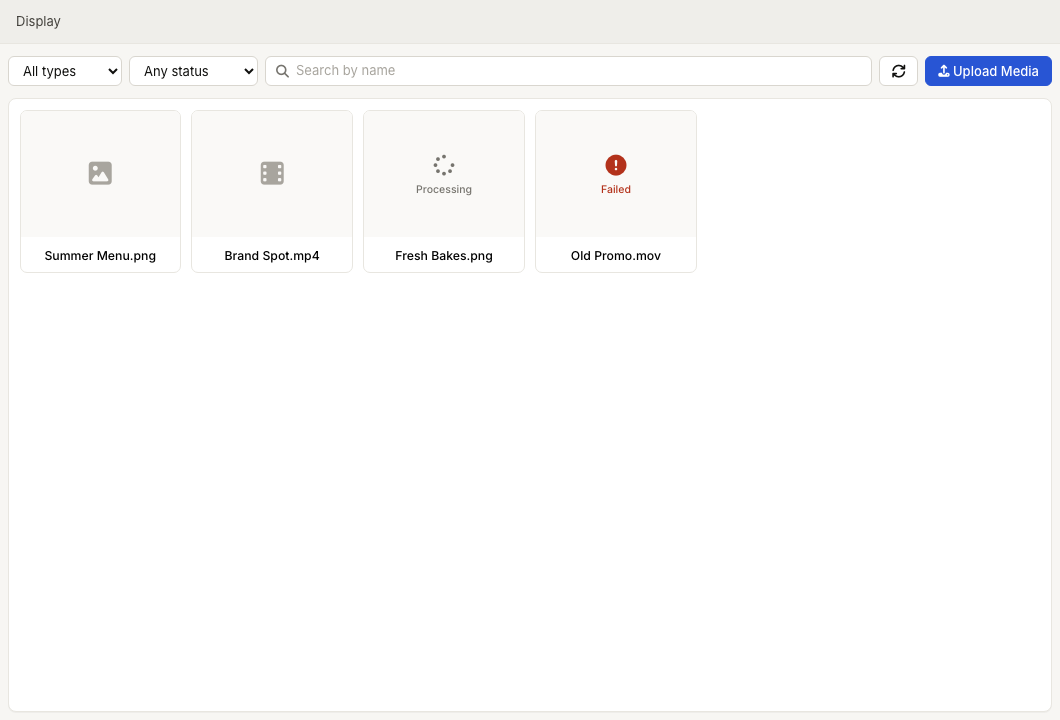
Open ZynoDisplay and go to Media Library. Media appears as a grid of cards; filter by type (images, videos, clips) or status, and search by name.
Uploading media
- Select Upload Media.
- Choose one or more image or video files.
- Each file uploads, then processes in the background. Watch its status on the card.
Supported files
- Images — PNG, JPEG, and WebP.
- Videos — MP4 (H.264) plays most reliably across devices.
- Large files (up to several hundred MB) and high resolutions up to 1080p are supported. Very large or unusual files take longer to process.
After upload, ZynoDisplay prepares optimized versions automatically so media plays smoothly on screens — you don't need to resize or convert anything yourself.
Processing status
Every item moves through a short lifecycle, shown on its card:
- Processing — uploaded and being prepared; not yet usable.
- Ready — available to add to playlists and screens.
- Failed — something went wrong (for example, an unsupported video codec). The item shows the reason; re‑upload a supported file.
Duplicate detection
If you upload a file that's already in the library, ZynoDisplay recognizes it and skips re‑processing, so you won't end up with duplicate copies of the same image or video.
Media details
Select a card to open its details, where you can:
- Rename the item.
- Review its type, dimensions, duration, size, and upload date.
- Delete it (see below).
- Create a clip from a video (see below).
Video clips
You can cut a shorter clip out of a ready video without re‑uploading. Open the video, choose New Clip, set the start and end points, and save. The clip becomes its own item in the library and can be deleted independently of the original.
Deleting media
Delete an item from its details view. If the item is still used by a playlist or a screen's content, ZynoDisplay tells you — update or remove those references first so a screen never points at missing media.
Common issues
| Problem | What To Check |
|---|---|
| An item is stuck Processing | Large videos take longer; refresh after a bit. Status also updates on its own. |
| An upload Failed | Check the reason on the card. For video, re‑export as MP4 (H.264) and try again. |
| A new upload didn't appear | It may be a duplicate of an existing item, which is reused rather than re‑added. |
| Can't delete an item | It's in use by a playlist or screen; remove those references first. |