Appearance
Display Groups
WebWorkstationA display group is a collection of screens that share the same default content and schedules. Instead of configuring ten lobby screens one by one, put them in a "Lobby Screens" group and set the content once. Groups can span devices and locations — any screens that should show the same thing.
Permission required
You need the Configure Displays permission to create and manage groups. See Permissions & Troubleshooting.
Getting there
Open ZynoDisplay and go to Display Groups. Each group shows how many screens it contains, its default content, and how many schedule rules it has.
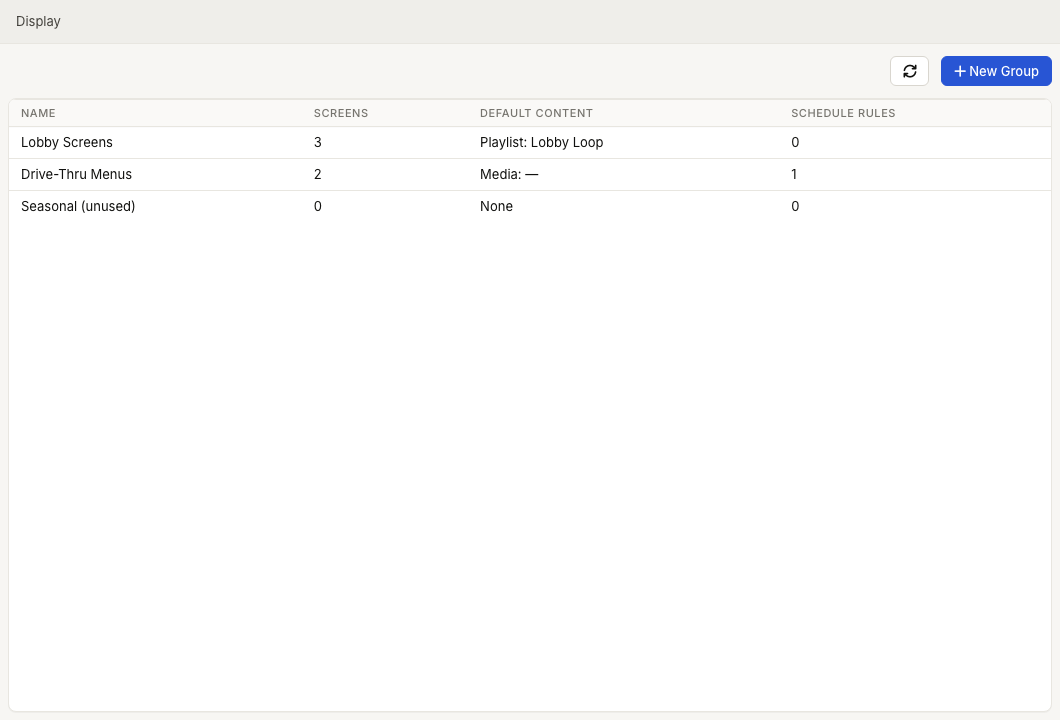
Create or edit a group
- Select New Group (or select an existing group to edit it).
- Give it a name, such as "Lobby Screens" or "Drive‑Thru Menus".
- Set the group's default content — see Content Types.
- Optionally add schedules so the group's screens change content through the day — see Scheduling & Dayparting.
- Save.
Adding screens to a group
A screen joins a group from its settings on the device's Screens tab — see Screens & Outputs. To assign many screens at once, select their devices in the Devices list and use Set Display Group in Bulk Actions.
How inheritance works
A screen in a group shows the group's default content and follows its schedules — unless the screen has its own default content or its own schedules, which take priority. This lets a group cover the common case while a single screen still does something different when needed. See How ZynoDisplay Works for the full order.
Deleting a group
Deleting a group unassigns its screens (they revert to their own content) and removes the group's schedules. The screens and their own settings are untouched.
Common issues
| Problem | What To Check |
|---|---|
| A screen ignores the group | The screen has its own default content, which overrides the group. Clear it to inherit. |
| A group shows 0 screens | No screens are assigned yet — add them from the Screens tab or via Bulk Actions. |
| Schedules don't apply to a screen | The screen may have its own schedules, which take priority over the group's. |