Appearance
Live Overrides & Playback Controls
WebWorkstationSometimes you need to act on a screen immediately — show a closure notice, run a flash promo, skip to the next item, or reload a stuck display. These live controls work on any connected device, on any platform.
Permission required
You need the Configure Displays permission. See Permissions & Troubleshooting.
Override content
An override temporarily replaces what a screen is showing, without changing its configured content. When the override ends, the screen returns to its normal content automatically.
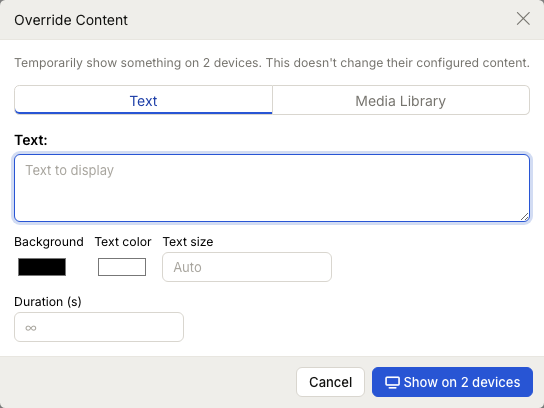
Choose what to show:
- Text — a message typed right in, with background color, text color, and text size. Great for "Back in 10 minutes" or "Now hiring".
- Media Library — a single image or video from your library.
Then set:
- Duration — how long the override runs. Leave it empty to keep it up until you clear it.
- Loop — repeat media for the duration.
Send it, and it appears on the screen immediately.
Clearing an override
Clear the override to return the screen to its scheduled or default content right away. Overrides also end on their own when their duration expires.
Playback controls
For a screen playing a playlist, you can control playback directly:
- Previous / Next — step through the playlist items.
- Jump to item — go straight to a specific item.
- Reset display — reload the screen's content, handy if a display looks stuck.
You'll find these on a screen's Controls in the Configure Device window.
INFO
Controls require the device to be connected. If a screen is offline, bring it back online first — see Status & Monitoring.
Doing this across many screens
To push an override, clear overrides, or reset displays across several devices at once, select them in the Devices list and use Bulk Actions. See Bulk Actions.
Common issues
| Problem | What To Check |
|---|---|
| An override didn't appear | The device must be connected. Check Status & Monitoring. |
| An override won't go away | Clear it from the device, or wait for its duration to expire. |
| Playback controls are missing | They apply to playlist content on a connected device. |
| The screen looks frozen | Use Reset display to reload its content. |