Appearance
Playlists
WebWorkstationA playlist is an ordered sequence of media that loops on a screen. Build it once and assign it to any number of screens or groups — update the playlist and every screen using it follows along.
Permission required
You need the Configure Displays permission to create and edit playlists. See Permissions & Troubleshooting.
Getting there
Open ZynoDisplay and go to Playlists. Each playlist shows its item count and default image duration.
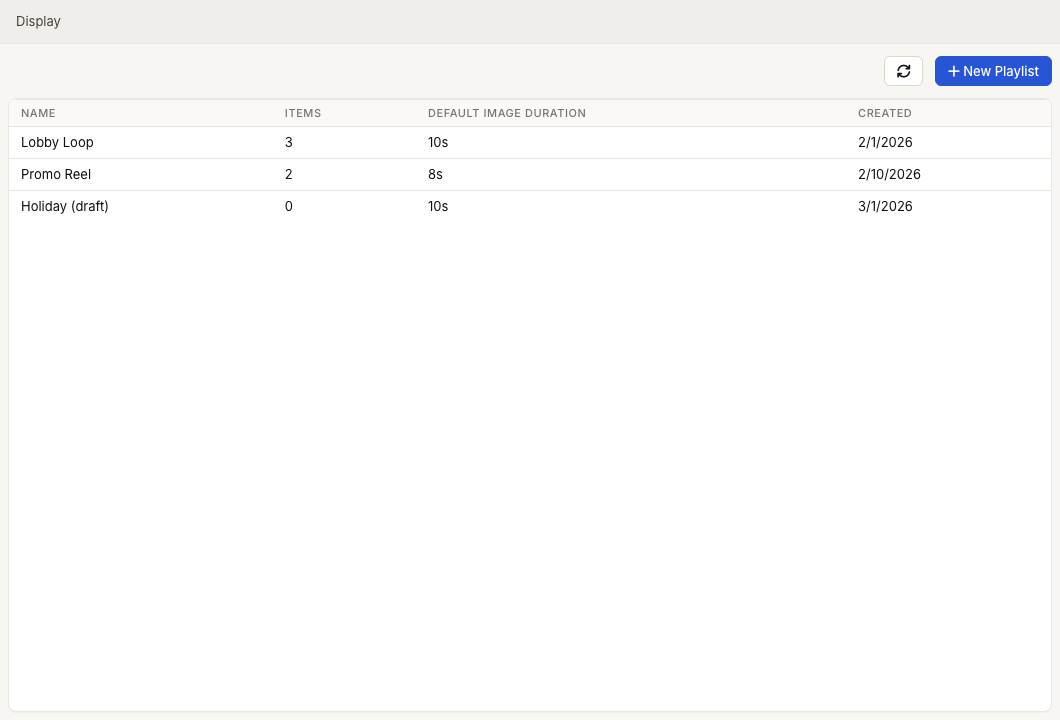
Create a playlist
- Select New Playlist.
- Give it a name (for example, "Lobby Loop").
- Set a default image duration — how long each image shows when you haven't set a time on the image itself.
- Save.
Build a playlist
Select a playlist to open the builder.
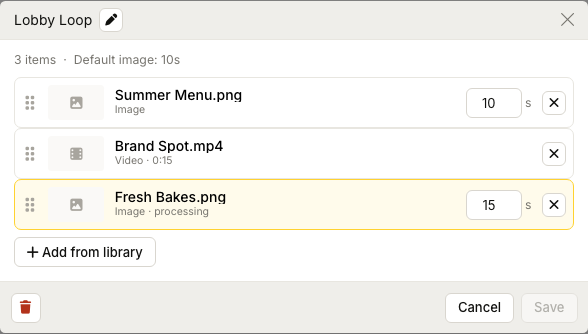
In the builder you can:
- Add from library — pick images and videos from your Media Library.
- Reorder — drag items into the order they should play.
- Set a per‑image duration — override the playlist default for a specific image. Videos always play their full length, so they don't have a duration setting.
- Remove items you no longer want.
Your edits are batched — make all your changes, then Save once. Cancel discards them.
Reusing playlists
Because screens reference a playlist (rather than copying it), editing a playlist updates every screen and group that uses it. This makes a single "house loop" easy to maintain across many screens. To put a playlist on a screen, see Assigning Content.
Deleting a playlist
If a playlist is assigned to any screen, group, or schedule, ZynoDisplay tells you when you try to delete it — clear those assignments first.
Common issues
| Problem | What To Check |
|---|---|
| An item shows as processing in the builder | The underlying media is still being prepared in the Media Library; it plays once ready. |
| An image won't change duration | Confirm it's an image — videos play their full length and have no duration setting. |
| A playlist won't delete | It's assigned somewhere; remove it from screens, groups, and schedules first. |
| "Missing media" appears | An item's media was deleted from the library; remove or replace that item. |