Appearance
Registering a Device
WebWorkstationRegistering — also called pairing or claiming — links a screen to your organization so you can manage it from ZynoDisplay. Every device, on every platform, uses the same simple flow: a code appears on the screen, and you enter it in ZynoSuite.
Permission required
You need the Register Device permission to pair a device. See Permissions & Troubleshooting.
Before you begin
- Power on the screen and make sure it's connected to the internet.
- Open the ZynoDisplay player app (it's pre‑installed on the ZynoDisplay touchscreen; otherwise install it).
- On first launch the app shows a 9‑digit registration code, for example
123 456 789.
Register the device
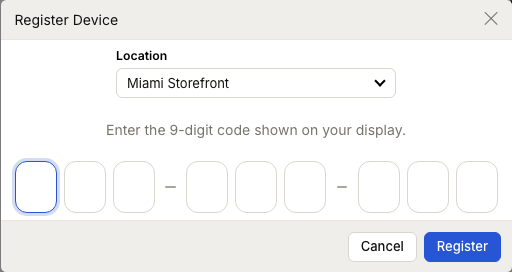
- Open ZynoDisplay and go to Devices.
- Select Register Device.
- Choose the Location for this screen. The location sets the device's time zone, which is what schedules use.
- Enter the 9‑digit code shown on the screen. You can type or paste it; spaces are ignored.
- Select Register.
The screen is claimed, appears in your Devices list, and switches from the code to a "registered" state. Next, configure it — give it a name and assign content.
TIP
Pick the location that matches where the screen physically lives. Getting the time zone right now means your schedules behave correctly later.
After registering
A freshly registered screen has no content yet, so it stays blank until you assign some. Open the device to name it and set its content, or add its screen to a group.
Moving a device to another organization
A device can only belong to one organization at a time. To hand a screen over, the current owner removes it (which returns it to an unclaimed state and shows a fresh code), and the new owner registers that code.
Common issues
| Problem | What To Check |
|---|---|
| The code is rejected | Re‑check all 9 digits. Codes are shown on the device itself — make sure you're reading the current one. |
| The device never appears | Confirm the screen has network access, then refresh the Devices list. |
| Register Device is missing | Your account may not have the Register Device permission. |
| The screen still shows a code after registering | Give it a moment to sync; if it persists, confirm the device is online. |
| Someone else already claimed it | Ask an administrator which organization owns the device; it must be released before you can claim it. |