Appearance
Phones
WebWorkstationUse Admin > ZynoTalk > Phones to assign physical phones to extensions, monitor registration, and manage phone provisioning configuration.
Admin Access required
Only ZynoTalk administrators should change phone assignments and provisioning configuration.
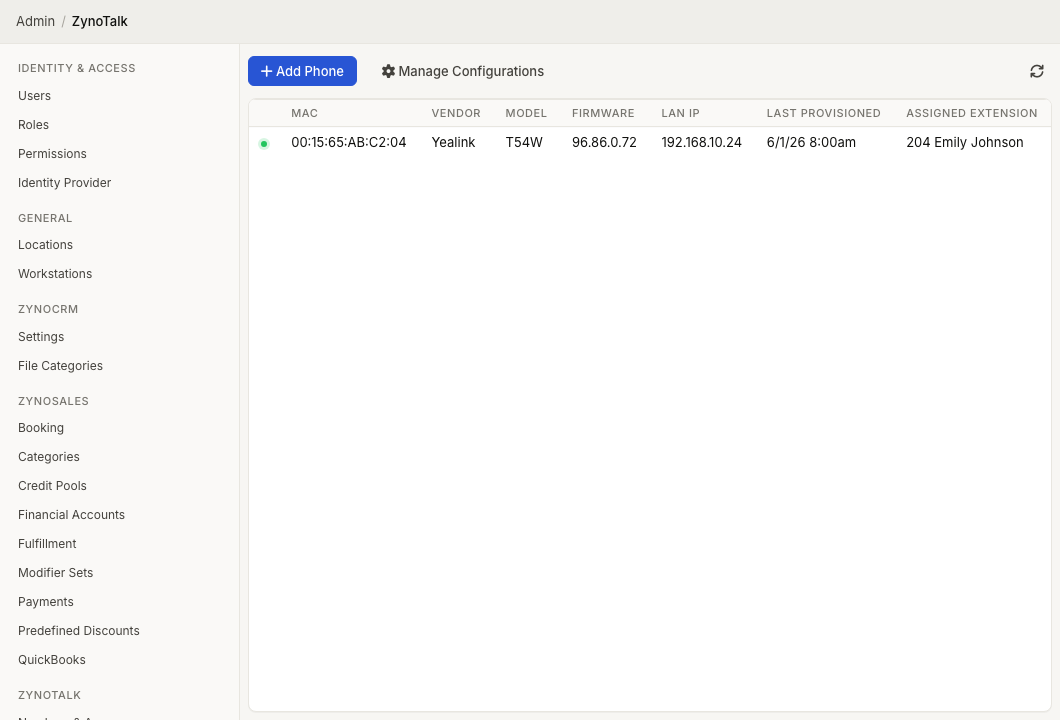
Page layout
The endpoint table shows assigned phones with:
- Registration status.
- MAC address.
- Vendor, model, and firmware.
- LAN IP.
- Last provisioned time.
- Assigned extension.
The page can also show quick-add notices for unassigned endpoints detected on your network or on a network shared by one of your endpoints.
Add a phone by MAC
- Select Add Phone.
- Enter the phone MAC address.
- Select the extension to assign.
- Optionally choose a base configuration.
- Save.
ZynoSuite validates the MAC address and the extension assignment limit before creating the endpoint.
Add detected endpoints
- Select the detected-endpoints notice.
- Review each detected phone.
- Choose an extension for each phone you want to assign.
- Optionally choose a base configuration to apply.
- Save.
You can leave a detected endpoint unassigned by choosing Do not assign.
Manage a phone
Select a phone row to open Manage Phone. The modal shows:
- Online or offline state.
- Device vendor, model, firmware, and MAC.
- Internet IP and LAN IP.
- Admin password, with copy action.
- Assigned extension.
- Last provisioned and last registered times.
- Base configuration.
- Custom configuration.
- Additional extensions when available.
Use Manage Extension to jump to the assigned extension's settings.
More actions
The phone action menu can include:
- Provision when the phone is registered.
- Reboot when the phone is registered.
- Add Additional Extension or Manage Additional Extensions when your account can manage multiple organization assignments.
- Remove Endpoint to unassign the phone.
If a phone shows an awaiting-device-check-in indicator, the saved change is waiting for the phone to check in and provision.
Configurations
Select Manage Configurations to create or edit reusable base configurations. Configurations can inherit from another configuration and can control BLF, sidecar BLF, and additional phone parameters.
A phone can also have a custom configuration. Custom configuration changes apply to that specific endpoint.
LAN IP link
When the phone reports a LAN IP, select it to open the phone's web management UI. Hold Option on macOS or Alt on Windows/Linux to open HTTP instead of HTTPS.
Common issues
| Problem | What To Check |
|---|---|
| A phone is offline | Confirm power, network, provisioning, and SIP registration. |
| An extension is not assignable | It may already be assigned to the maximum number of endpoints. |
| Add by MAC fails | Check that the MAC address has 12 hexadecimal characters. |
| Provision changes do not appear immediately | Wait for the device to check in or use Provision if the phone is registered. |
| LAN IP does not open | Make sure you are on the same network as the phone and try the HTTP option. |