Appearance
Users
WebWorkstationCreate and manage who can sign in, assign roles, set Workstation usernames, manage fingerprints, and remove access. Open Admin > Identity & Access > Users.
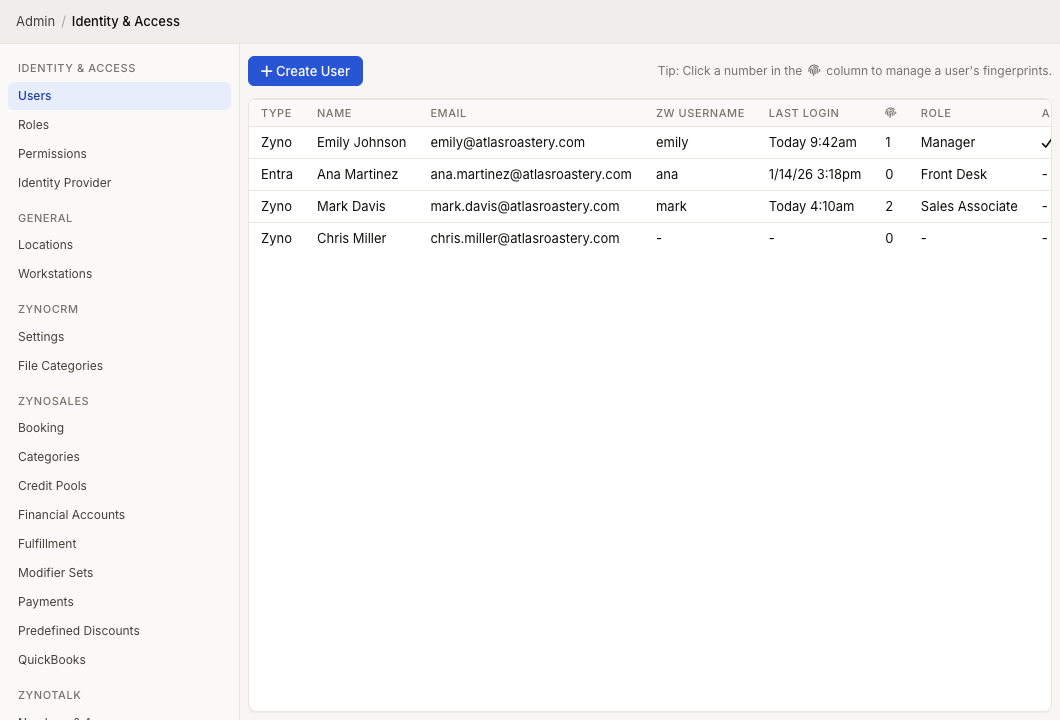
Viewing the user list
The list shows all user accounts in your organization. Each row shows:
| Column | Meaning |
|---|---|
| Type | Whether the user is a direct ZynoSuite user or came from your identity provider, such as Entra |
| Name | The user's first and last name |
| The email address used for web sign-in | |
| ZD Username | Optional shorter username for ZynoWorkstation sign-in |
| Last Login | The last time the user signed in |
| Fingerprint icon | The number of fingerprints enrolled for ZynoWorkstation |
| Role | The user's assigned role, or - if no role is assigned |
| Admin | Whether the user has unrestricted administrator access |
Select a user row to edit the user. Select the number in the fingerprint column to manage that user's fingerprints.
Creating a new user
- Select Create User.
- If your organization uses an identity provider, choose Create from [Provider] or Create manually.
- For an identity-provider user, select the user from the list.
- For a manually created user, fill in the user details:
- First Name and Last Name
- Email for ZynoSuite web sign-in
- Username if the user should sign in to ZynoWorkstation with a shorter username
- Password if the user needs a direct ZynoSuite password
- Choose a role, or leave Role as
(none)if you will grant access later. - Optionally select Make this user an administrator.
- Select Create.
At least one sign-in identifier is required. ZynoSuite web sign-in requires an email address. ZynoWorkstation can use either an email address or the optional ZD Username.
If your organization uses Identity Provider (SSO), users who authenticate through that provider use the provider account rather than a direct ZynoSuite password.
Assigning roles
Roles are the primary way to grant permissions. Each role is a named collection of permissions that can be shared across multiple users. To assign a role:
- Open a user's detail view.
- Choose the user's Role.
- Save your changes.
A user's effective permissions are the permissions granted by their assigned role, plus any directly assigned permissions. For more on how roles work, see Roles.
Direct permission assignment
In addition to role-based permissions, you can grant individual permissions directly on a user account. This is useful when a specific user needs extra access that does not warrant creating a new role.
Direct permissions are managed from the Permissions page by selecting a specific user rather than a role.
Direct permissions add access. They do not remove access granted by the user's role.
The admin flag
Each user account has an admin toggle. When enabled, the user bypasses all permission checks entirely and has unrestricted access to every feature in ZynoSuite, including the Admin Panel. Use this flag sparingly — in most cases, it is better to assign a role with specific permissions.
Editing or deleting users
Open a user to update direct ZynoSuite account details, such as Username, Password, Role, or the administrator checkbox. For identity-provider users, name and email fields come from the provider and are shown as read-only.
The edit screen also includes a delete icon. Delete a user only when they should no longer have a ZynoSuite account.
To delete a user:
- Open the user's detail view.
- Select the delete icon.
- Confirm the deletion.
Deleting the user removes their sign-in access. Review the user's role, fingerprints, and identity-provider status before deleting.
Fingerprints
The fingerprint column shows how many fingerprints are enrolled for each user. Select the number in that column to manage fingerprints used for ZynoWorkstation sign-in.
Fingerprint sign-in is a Workstation workflow. Users who only sign in through the web do not need fingerprint enrollment.