Appearance
Permissions
WebWorkstationSet what each role or user can do. Permissions are grouped by application (module), with feature-level options inside each group.
The permission model
ZynoSuite uses a role-based access control system with per-user direct grants. There are three layers:
- Roles define a reusable set of permissions. See Roles.
- Users are assigned one role, inheriting that role's permissions.
- Direct assignments can grant additional permissions to a specific user, independent of their role.
A user's effective permissions are the combination of the assigned role plus anything granted directly on their account.
Permission applications
Permissions are grouped into applications, each corresponding to a ZynoSuite module or admin area. Within each application, individual permissions control access to specific features or actions.
| Application | Scope |
|---|---|
| Core | Account-level actions such as changing passwords and managing fingerprint enrollments |
| ZynoCRM | Contact management, notes, files, forms, memberships, and payment methods |
| ZynoSales | Salespoint register, products, transactions, gift cards, fulfillment, reports, discounts, and bookings |
| ZynoTalk | Phone number and extension access (managed per-number in ZynoTalk Admin) |
| ZynoInventory | Editing inventory items and adjusting stock quantities |
| ZynoForms | Opening the submissions workspace |
| ZynoDisplay | Registering and configuring display devices |
| MSP | Multi-organization administration capabilities (login and impersonation) |
For a complete list of every permission and what it controls, see the Permissions Reference.
Using the permissions screen
The Permissions page opens to an application overview. Use the switcher in the toolbar to choose whether you are reviewing roles or users. The overview table shows each role or user with a status for each application, such as No Access, Some Access, Full Access, or Admin.
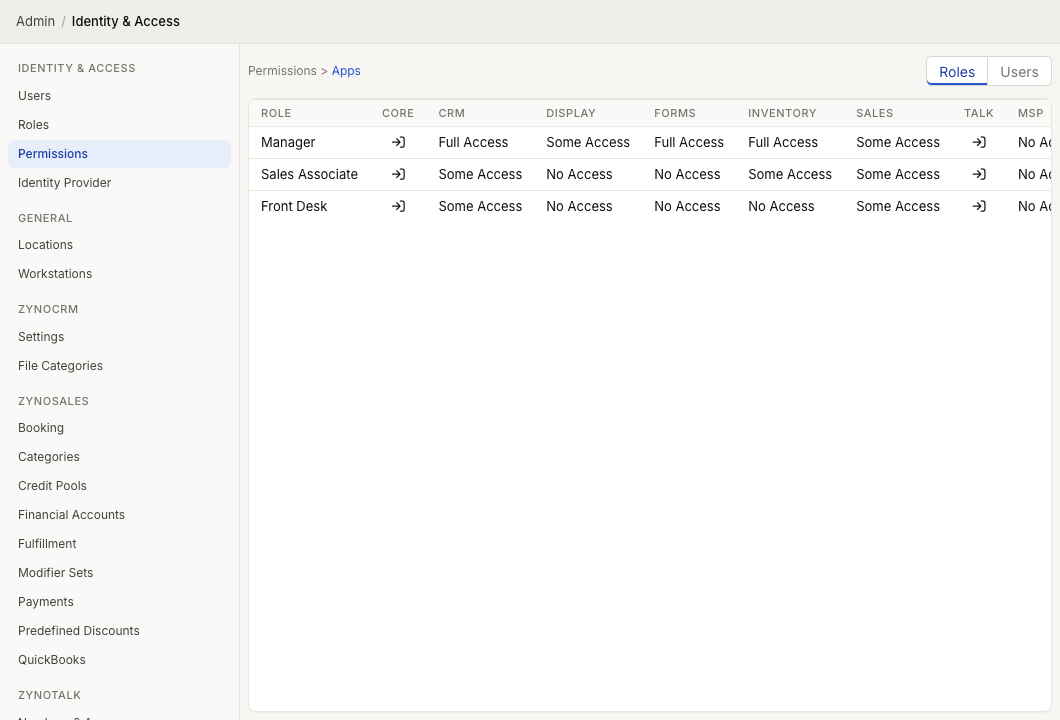
Select an application column or cell to open the detailed permission grid for that application. The breadcrumb at the top returns you to Permissions > Apps.
Configuring role permissions
- Keep the toolbar switcher set to roles.
- Select the application you want to configure.
- For most applications, use Access [Application] to turn the application on or off for the role.
- Choose the needed permission options in that role's row.
Changes save as soon as you select them. All users with that role are updated immediately.
Configuring user permissions
- Switch the toolbar from roles to users.
- Use effective mode to review what each user can actually do. This view is read-only.
- Switch to assigned mode to edit permissions granted directly to users.
- Select the application you want to configure.
- Choose the direct permission options in that user's row.
Direct user permission changes save as soon as you select them. The effective view is useful for auditing because it shows the combined result of the user's role and any direct assignments.
Direct permission assignment
Direct assignments are useful for exceptions. For example, if one team member temporarily needs access to sales reports but their role does not include it, you can grant the reporting permission directly on their user account without modifying the role that other team members share.
Direct assignments add to whatever the user's role already provides. They do not replace or reduce role-based permissions. To remove access inherited from a role, change the role itself or assign the user a different role.
The admin flag
Users with the admin flag enabled bypass all permission checks entirely. They have unrestricted access to every feature in ZynoSuite, including the Admin Panel. The admin flag is set on the Users page, not on the Permissions page.
TIP
Because the admin flag overrides everything, the Permissions page has no practical effect for admin users. Configure permissions for non-admin users.
Permission applications overview
Below is a brief summary of what each application covers. See the Permissions Reference for the full breakdown.
Core
Controls basic account operations: changing the user's own password and managing fingerprint enrollments for Workstation authentication.
ZynoCRM
Governs all contact-related actions. Permissions are split between creating/editing contacts and the sub-features within a contact record (notes, files, forms, memberships, and payment methods). Read and write permissions are separated, so you can grant view-only access where appropriate.
ZynoSales
The largest permission group. Controls access to the Salespoint register (including platform restrictions for desktop-only vs. anywhere), discount application (predefined vs. custom), cash drawer operations, gift cards, product management, transaction viewing and editing, fulfillment workflows, reports, and bookings.
ZynoTalk
Unlike other applications, ZynoTalk permissions are managed on a per-number and per-extension basis in the ZynoTalk Admin section rather than through the global permissions screen. Each phone number and extension has its own user access list.
ZynoInventory
Controls whether a user can edit inventory item details and whether they can adjust stock quantities. These are separated because you may want some users to view inventory without being able to change counts.
ZynoForms
Controls access to the ZynoForms submissions workspace. The current Permissions screen does not expose individual form creation or editing rows.
ZynoDisplay
Controls display device setup and configuration, including registering devices, renaming devices, and assigning None, ZynoForm, or Web View content.
Review and set fine-grained access for roles and users. Open Admin > Identity & Access > Permissions.
Multi-organization administration permissions. These only apply to managed service provider accounts that oversee multiple ZynoSuite organizations. The login permission allows accessing the MSP portal, and impersonate allows acting on behalf of an organization.