Appearance
Delivering Gift Cards
WebWorkstationMobileGift card delivery lets staff send, print, or download a gift certificate after the card is activated.
Permission required
You need ZynoSales gift card view access. Printing also requires ZynoWorkstation and printer setup.
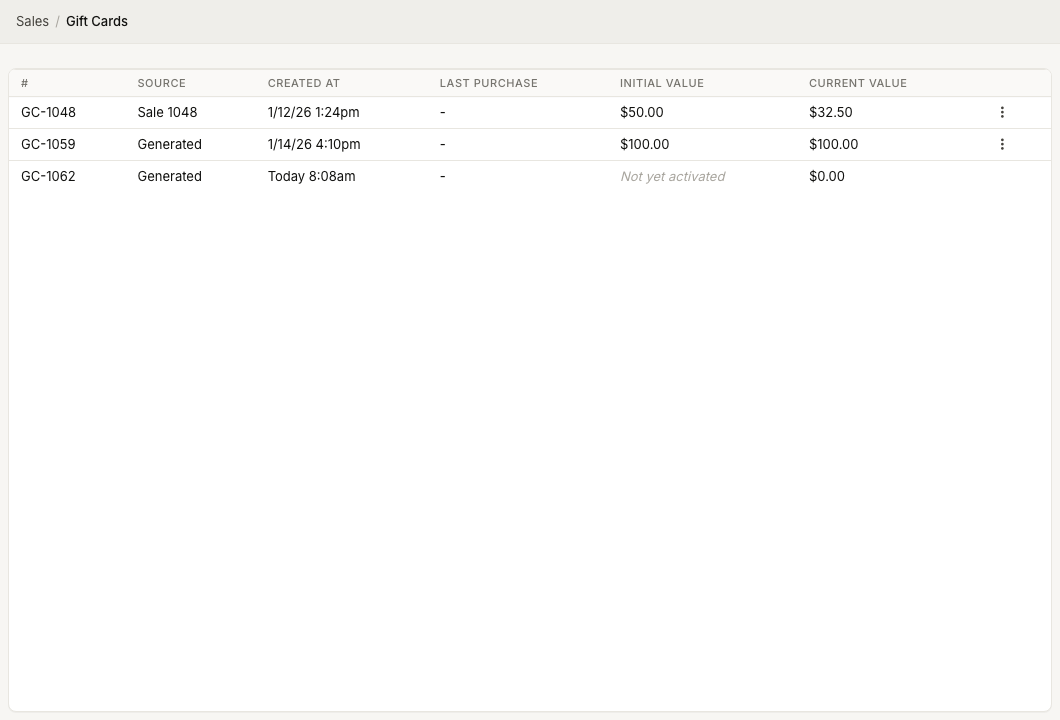
Deliver from the gift cards list
- Open ZynoSales > Gift Cards.
- Find the activated gift card.
- Open the row actions menu.
- Choose Print/E-mail or Download.
Cards that are Not yet activated do not show delivery actions.
Email a digital certificate
- Choose Print/E-mail.
- Select E-mail digital certificate if the modal asks for a method.
- Enter the recipient email.
- Enter a recipient name if needed.
- Select Send.
The recipient receives the gift certificate by email.
Print a certificate
Printing is available from Workstation when printing is configured.
- Choose Print/E-mail.
- Select Print certificate.
- Enter a recipient name if needed.
- Select Print.
Download a PDF
Use Download when you need a PDF copy for manual delivery or record keeping. The downloaded file is named with the gift card number.
Common issues
| Problem | What To Check |
|---|---|
| Delivery actions are missing | Confirm the gift card has an initial value and is activated. |
| Print option is missing | Use Workstation with printer setup. |
| Email delivery fails | Confirm the recipient email is valid. |
| Customer did not receive the email | Verify the address and ask the customer to check spam or junk mail. |