Appearance
Waitlist
WebWorkstationWhen a time slot is fully booked, the waitlist lets interested customers register their interest so they can be notified if a spot opens up. This helps you capture demand you would otherwise lose and fill cancellation gaps quickly.
How the Waitlist Works
- A customer wants to book a time slot that is full.
- Staff (or the customer, if online booking is enabled) adds them to the waitlist for that slot.
- When a spot opens — because of a cancellation, reschedule, or no-show — the next person on the waitlist is automatically notified.
- The notified customer has a window of time to confirm their booking before the spot is offered to the next person.
Adding Someone to the Waitlist
To add a waitlist entry, you need:
- Activity and Time Slot — Which activity and time slot the customer wants.
- Product — The specific service they are interested in. This is important because different products may consume different amounts of capacity.
- Customer Information — Name, email, and optionally phone number. If the customer is already in your CRM, you can link them directly.
- Quantity — How many spots they need.
- Duration (for variable-duration activities) — Which session length they want.
- Preferred Resource (optional) — If the customer wants a specific resource (like a particular stylist or lane), you can record that preference. They will only be notified when that specific resource has an opening.
Waitlist Statuses
Each waitlist entry moves through these statuses:
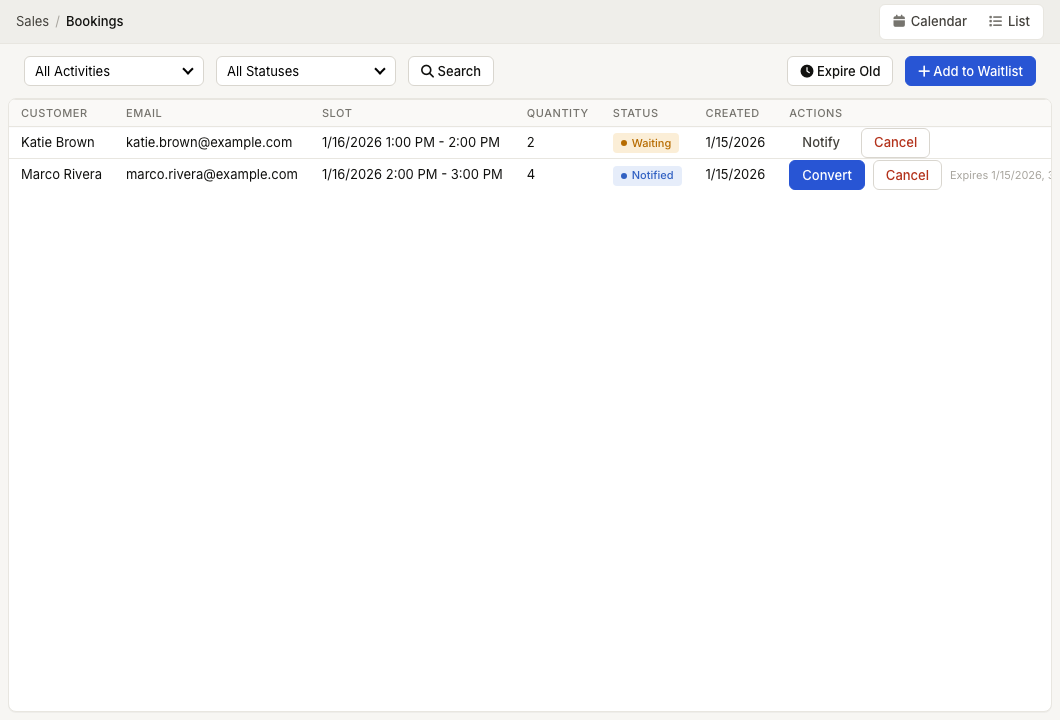
- Waiting — The entry is active and waiting for a spot to open.
- Notified — A spot has opened and the customer has been notified. They have a limited time to respond.
- Converted — The customer confirmed and their waitlist entry has been converted into an actual booking.
- Expired — The customer did not respond within the notification window, or the waitlist entry has exceeded its maximum age. The spot is offered to the next person.
- Cancelled — The customer or staff cancelled the waitlist entry.
Automatic Notifications
When capacity becomes available in a slot that has a waitlist, the system automatically notifies the next eligible person. "Eligible" means:
- Their requested quantity fits within the newly available capacity.
- If they specified a preferred resource, that specific resource is the one that freed up.
- Their entry is still in "waiting" status (not expired or cancelled).
After notification, the customer has a limited time to respond. If they do not confirm within the window, their entry is marked as expired and the next person on the list is notified.
Manual Notification
Staff can also manually notify a waitlist entry at any time, even if automatic notification has not been triggered. This is useful when you want to proactively reach out to a specific customer.
Converting a Waitlist Entry to a Booking
When a notified customer is ready to confirm, staff can convert their waitlist entry directly into a booking. This creates the booking and sales transaction in one step, using the details from the waitlist entry (product, quantity, time slot).
Cancelling a Waitlist Entry
Customers or staff can cancel a waitlist entry at any time. When an entry is cancelled, the next person in line is automatically notified if a spot is still available.
Duplicate Prevention
The system prevents the same customer from being added to the waitlist for the same time slot more than once. This is checked by both CRM contact (if linked) and email address.
Expiration
Waitlist entries automatically expire after a configured period. This prevents stale entries from accumulating. When an entry expires:
- The customer is no longer notified about openings.
- The next person in line is notified instead (if applicable).
Staff can also manually remove old entries through the waitlist management interface.
TIP
Review your waitlist regularly. Patterns in waitlist demand can help you identify opportunities — if the same time slots always have a waitlist, consider adding capacity (more resources, longer hours) or adjusting pricing to balance demand.